TABLE OF CONTENTS
- 1. Overview
- 2. Package Contents
- 3. Works With
- 4. Checking Wired Connectivity Support
- 5. Usage — Getting Started
- 6. Bluetooth Pairing — iOS
- 7. Bluetooth Pairing — Android
- 8. In Some Displays (No Native CarPlay Support)
- 9. In WebLink Displays
- 10. Permissions Reminder
- 11. If You Face Problems / Issues
- 12. Unpairing the Car from Android Auto & CarPlay
- 13. Warranty & Support
1. Overview
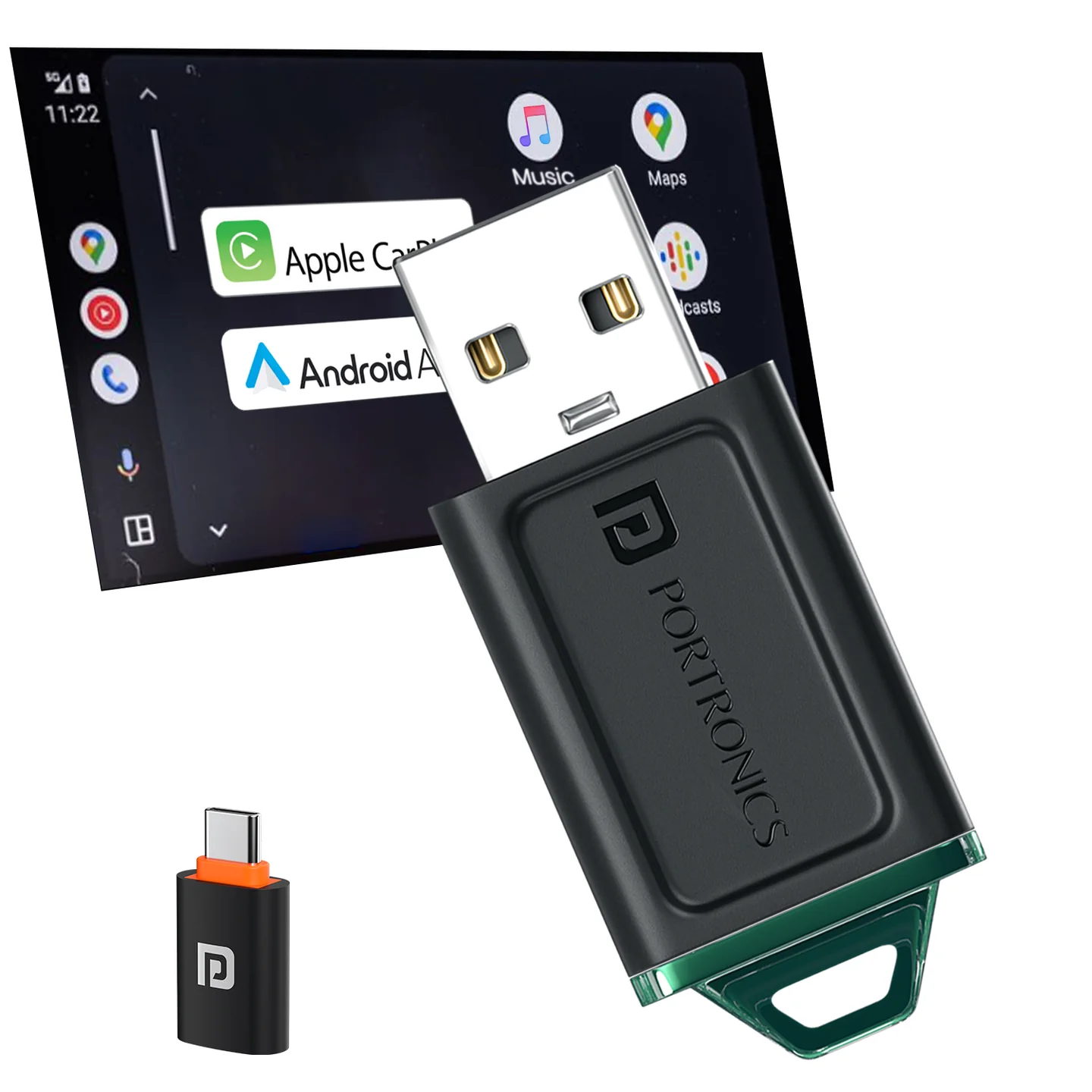
The Tune Lite is a wireless car receiver that adds Android Auto and Apple CarPlay to cars that only support the wired version of these platforms. Plug it into your car's USB data port, pair your phone's Bluetooth once, and it launches Android Auto or CarPlay wirelessly from then on.
2. Package Contents
- Portronics Tune Lite × 1
- USB-A to Type-C converter × 1
- User Manual × 1
3. Works With
- Cars that support wired Android Auto / CarPlay.
- Cars without any third-party software/display — the car must have an original display.
- Mobiles with Android 12 or higher and iOS 15 or higher.
Important: Do not connect the mobile's Bluetooth directly to the car's stereo/display — pair it with the Tune Lite instead (see pairing steps below).
4. Checking Wired Connectivity Support
Connect your mobile device to the car's USB port using a data cable. If a prompt/information appears on the car's display, your car supports wired connectivity. If you're unsure, contact your car manufacturer for confirmation.
5. Usage — Getting Started
- Start the car and reset the display. Go to your car display's Settings and use Factory Reset/Default if needed to clear any previous connections.
- Plug the Tune Lite into the data port in your car (the same USB port normally used for wired Android Auto/CarPlay).
- Car screen displays "Portronics Tune Lite XXXX". This confirms the receiver is detected.
- Pair your mobile's Bluetooth with "Portronics Tune Lite XXXX".
Once the device gets paired, it is ready to use in either Android Auto or CarPlay.
6. Bluetooth Pairing — iOS
Plug in the Tune Lite; the car display shows a CarPlay select prompt. After this, the car screen displays "PORTRONICS Tune Lite XXXX". Turn on your iPhone's Bluetooth and connect it to the device, then wait for 2–3 minutes. CarPlay will launch automatically.
7. Bluetooth Pairing — Android
Plug in the Tune Lite; the car display shows a CarPlay select prompt. After this, the car screen displays "PORTRONICS Tune Lite XXXX". Turn on your mobile's Bluetooth and connect it to the device, then wait for 2–3 minutes. Android Auto will launch automatically.
8. In Some Displays (No Native CarPlay Support)
The Tune Lite automatically starts up in CarPlay as a default function. If your display doesn't support CarPlay, the screen will not display anything. Connect your mobile to the device via Bluetooth and wait for 2–3 minutes — Android Auto will start to function and gets connected automatically for future use.
iOS: If you have an iOS mobile, the display will start to function in CarPlay after pairing it with Bluetooth.
Android: If you have an Android mobile, select CarPlay on your display, pair your mobile's Bluetooth, and wait for 2–3 minutes. The display restarts and shows Android Auto and WebLink icons — select Android Auto and the display will start to function in that mode.
9. In WebLink Displays
Reset your WebLink display and plug the Tune Lite into the data port. The display shows CarPlay and WebLink icons. Select CarPlay — the display shows "PORTRONICS Tune Lite XXXX" — and pair your mobile's Bluetooth with "PORTRONICS Tune Lite XXXX".
10. Permissions Reminder
Kindly allow all requested permissions during both iOS and Android pairing.
After this initial set-up, the device automatically pairs with the car for future use.
11. If You Face Problems / Issues
Follow these steps if you face any problem setting up the device.
Display Reset: Unplug the Tune Lite and plug it back in to reset your car's display.
12. Unpairing the Car from Android Auto & CarPlay
If the display gets confused or stuck, unpair the car from Android Auto/CarPlay on your phone using the steps below, then repeat the pairing process from Section 5.
| iOS Mobile | Android Mobile |
|---|---|
| Settings | Settings |
| ↓ | ↓ |
| General | Connections |
| ↓ | ↓ |
| CarPlay | Android Auto |
| ↓ | ↓ |
| My Cars | Vehicle |
| ↓ | ↓ |
| Select your Car | Select your Car |
| ↓ | ↓ |
| Forget This Car | Forget |
13. Warranty & Support
Warranty: 6 months, covering product design, feature, and functionality-related faults. Damage due to physical impact, liquid exposure, fire, or misuse is not covered.
Need Help?
- Visit: support.portronics.com
Was this article helpful?
That’s Great!
Thank you for your feedback
Sorry! We couldn't be helpful
Thank you for your feedback
Feedback sent
We appreciate your effort and will try to fix the article