TABLE OF CONTENTS
- Product Overview
- Quick Reference
- What's in the Box
- Ports & Controls
- Setting Up Zuno
- Power On, Standby and Off
- Switching Playback Modes
- 1. Bluetooth Pairing
- 2. USB-C Mode
- 3. HDMI Mode
- 4. AUX Mode
- Volume and Track Controls by Mode
- LED Light Effects
- Using the Remote Control
- Troubleshooting
- Care & Safety
- Still stuck?
Product Overview
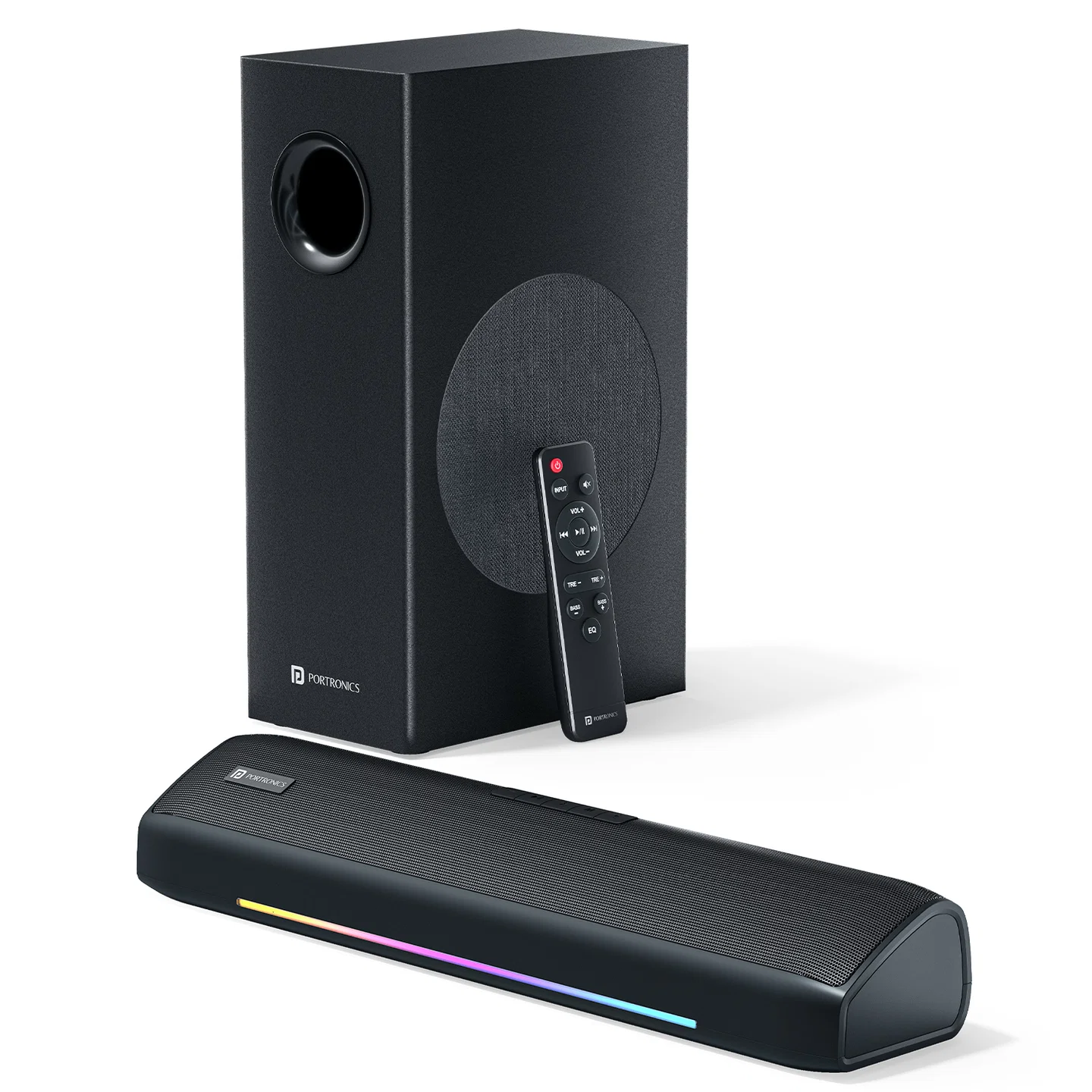
The Portronics Zuno is a 100W 2.1-channel home theatre soundbar with a wired subwoofer. It supports Bluetooth, USB-C, HDMI and AUX audio, multiple sound modes, a remote control and multicolour LED lighting.
Quick Reference
| Feature | Details |
|---|---|
| Product | Portronics Zuno |
| Product Code | POR 3315 |
| Audio Output | 100W |
| Channel Configuration | 2.1 channel |
| Soundbar Speakers | 2 × 2.25-inch |
| Subwoofer | 1 × 4-inch, wired |
| Bluetooth | 5.3 |
| Frequency Response | 35Hz–20kHz |
| Inputs | Bluetooth, HDMI, AUX (3.5mm), USB-C |
| Additional Port | Subwoofer output |
| Control | Remote control and on-device buttons |
| Lighting | Multicolour LED lighting |
What's in the Box
| Item | Quantity |
|---|---|
| Soundbar | 1 |
| Subwoofer | 1 |
| Remote Control | 1 |
| AUX Cable | 1 |
| Power Adapter | 1 |
| User Manual | 1 |
Ports & Controls
| Port / Control | Function |
|---|---|
| AUX | 3.5mm audio input |
| USB-C | USB-C input for compatible playback |
| HDMI | HDMI audio input from a compatible device |
| SUB | Subwoofer output |
| DC Power Input | Connects the supplied power adapter |
| “−” Button | Short press: volume down; long press: previous track in Bluetooth/USB-C mode |
| “+” Button | Short press: volume up; long press: next track in Bluetooth/USB-C mode |
| “M” / Mode Button | Short press: change LED light mode; long press: switch playback mode |
| Play/Pause Button | Playback/call or Bluetooth pairing controls, depending on mode |
| LED Button | Cycles through the lighting effects |
Setting Up Zuno
- Place the soundbar and subwoofer on a stable surface.
- Connect the subwoofer to the soundbar’s SUB output using its designated connection.
- Connect the supplied power adapter to the soundbar’s DC Power Input.
- Connect the adapter to a suitable power outlet.
- The speaker enters standby mode and the red indicator appears between the “+” and “M” buttons.
- Press and hold the M / Mode button for about 2 seconds to turn the system on. A beep sounds and a blue light indicates Bluetooth mode.
Do not force a connector into a port. Check that each cable is connected to the matching port.
Power On, Standby and Off
- When DC power is connected, the system enters standby mode.
- A red indicator between the “+” and “M” buttons indicates standby.
- Press and hold the M / Mode button for about 2 seconds to turn the system on.
- To turn the system off, press and hold the M / Mode button for about 2 seconds.
Switching Playback Modes
Short-press the M / Mode button to cycle through the playback modes.
| Mode | Indicator Colour |
|---|---|
| Bluetooth (BT) | Blue |
| USB-C | Green |
| HDMI | Cyan |
| AUX | Red |
Choose the mode that matches the source device you have connected.
1. Bluetooth Pairing
- Turn on Zuno using the power/mode instructions above.
- The system starts in Bluetooth mode; the blue light indicates Bluetooth.
- Open Bluetooth settings on your phone, tablet, laptop or other compatible device.
- Search for Zuno.
- Select Zuno to connect.
- Once paired, start audio playback.
If pairing does not work, check that the soundbar is on and within Bluetooth range. Turn off other nearby Bluetooth devices if the device search is crowded, then try again.
Bluetooth Controls
| Action | Control |
|---|---|
| Play / Pause | Short-press Play/Pause |
| Pair / Disconnect Bluetooth | Press and hold Play/Pause |
| Volume Up | Short-press “+” |
| Volume Down | Short-press “−” |
| Next Track | Press and hold “+” |
| Previous Track | Press and hold “−” |
2. USB-C Mode
- Connect a compatible device to the soundbar’s USB-C input.
- Short-press the M / Mode button until the indicator is green.
- Start playback on the connected device.
- Use Play/Pause and the volume/track controls to manage playback.
In USB-C mode, the manual says the light flashes purple during operation.
3. HDMI Mode
- Connect a compatible audio source or TV to the soundbar’s HDMI input.
- Short-press the M / Mode button until the indicator is cyan.
- Select the appropriate audio output on the connected device if required.
- Start playback and adjust the volume.
4. AUX Mode
- Connect the supplied 3.5mm AUX cable from the source device to Zuno’s AUX input.
- Short-press the M / Mode button until the indicator is red.
- Start playback on the connected device.
In AUX mode, the manual states that a short press of Play/Pause mutes or unmutes the sound. Long presses of “+” and “−” are not functional in AUX mode.
Volume and Track Controls by Mode
| Control | Bluetooth / USB-C Mode | AUX Mode |
|---|---|---|
| Short press “+” | Volume up | Volume up |
| Long press “+” | Next track | No function |
| Short press “−” | Volume down | Volume down |
| Long press “−” | Previous track | No function |
| Play/Pause short press | Play/Pause in Bluetooth and USB-C modes | Mute/Unmute |
| Play/Pause long press | Pair/Disconnect Bluetooth in Bluetooth mode | — |
LED Light Effects
When DC power is connected, the side lights turn on in a single colour and the front RGB light bar can auto-switch and flash. During music playback, the RGB light bar flashes from left to right in rhythm.
Use the LED button to cycle through lighting effects:
| Button Action | Light Effect |
|---|---|
| Press once | Red, green and blue breathing effect |
| Press twice | Blue, cyan, green, yellow, red and purple marquee animation |
| Press three times | Solid blue light |
| Press four times | Solid green light |
| Press five times | Solid purple light |
| Press six times | Turns off all lights |
Using the Remote Control
The system includes a remote control. Use it for the supported soundbar functions and point it toward the soundbar when sending a command. If a remote command does not work, check that the system is powered on and that the remote has working batteries installed.
Troubleshooting
No sound
- Confirm the soundbar is powered on.
- Check that the selected mode matches the input being used.
- Check the audio output setting on the source device.
- Turn up the volume on both the source device and soundbar.
- Check that the subwoofer and other cables are securely connected.
Bluetooth pairing fails
- Make sure the speaker is on and in Bluetooth mode (blue light).
- Keep the source device within Bluetooth range.
- Turn off other nearby Bluetooth devices if they make searching difficult.
- Search for Zuno again and reconnect.
Sound cuts out
- Check the connection to the audio source.
- For Bluetooth, reduce distance and obstacles between the source and soundbar.
- For HDMI, AUX or USB-C, make sure the cable is fully inserted in the correct port.
Soundbar will not turn on
- Check that the power adapter is connected to the DC input and wall outlet.
- Confirm that the red standby indicator appears.
- Press and hold the M / Mode button for about 2 seconds.
- If the issue continues, check the adapter and cable for damage.
Care & Safety
- Place the soundbar and subwoofer on stable surfaces.
- Use the supplied power adapter or a compatible adapter with the correct rating.
- Keep the unit away from water, moisture and excessive heat.
- Do not open or modify the soundbar, subwoofer or adapter.
- Keep ventilation openings unobstructed.
- Turn off the system before connecting or disconnecting cables.
- Avoid prolonged listening at maximum volume.
- If the adapter, cable or product is damaged, stop using it and contact support.
Still stuck?
If the issue persists after performing all troubleshooting steps, please raise a support request.
Our support team will assist you further.
Support
- Visit: www.portronics.com
- Support Portal: support.portronics.com
Was this article helpful?
That’s Great!
Thank you for your feedback
Sorry! We couldn't be helpful
Thank you for your feedback
Feedback sent
We appreciate your effort and will try to fix the article