Portronics Mport Vault Pro
TABLE OF CONTENTS
- Product Overview
- 2. Key Specifications
- 3. Package Contents
- 4.Port Layout and Functions
- 5. Compatibility
- 6. Setup and Usage
- 7. Performance Capabilities
- 8. Safety and Care Instructions
- 9. Troubleshooting
- 10. Practical Usage Tips
- Still Facing Issues?
Product Overview
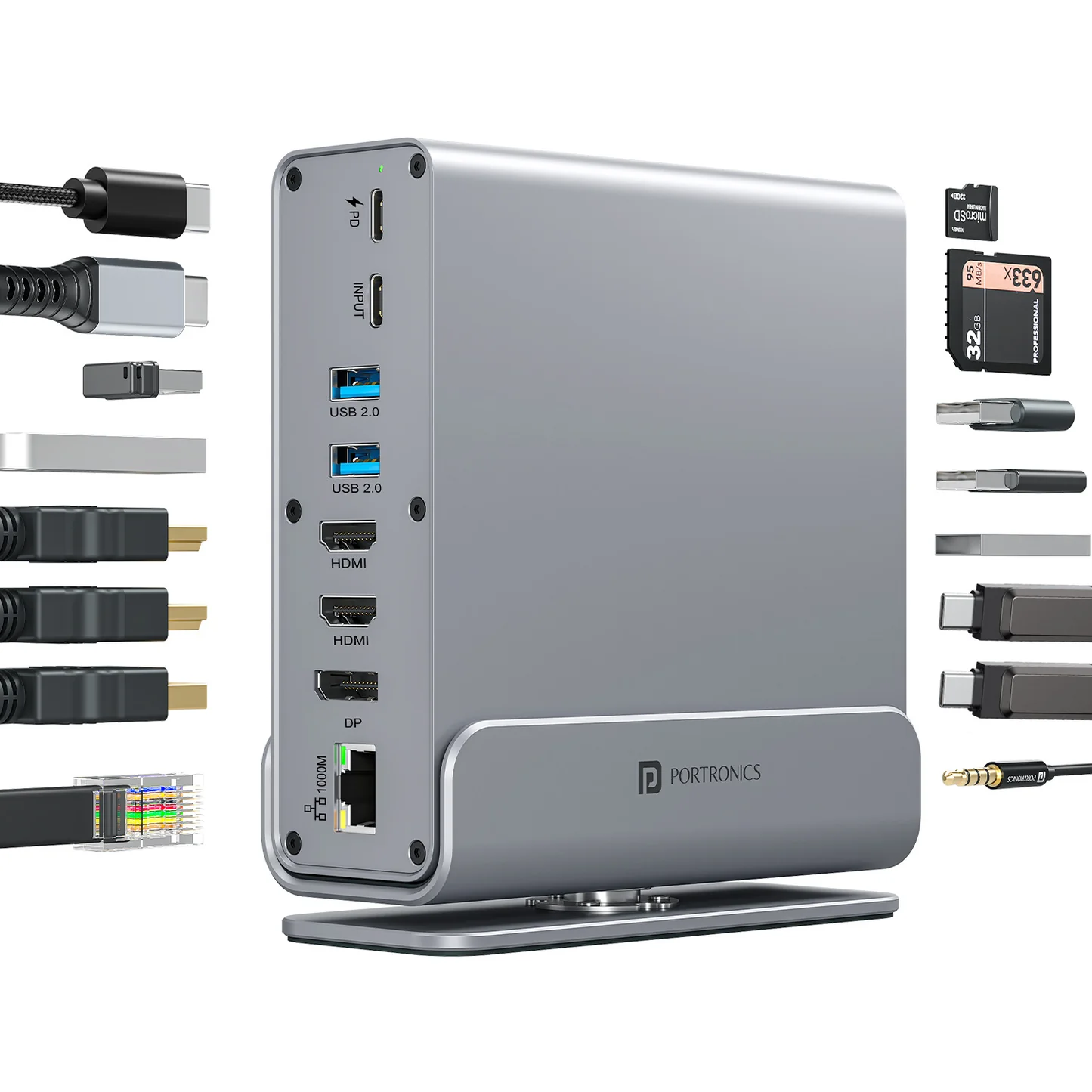
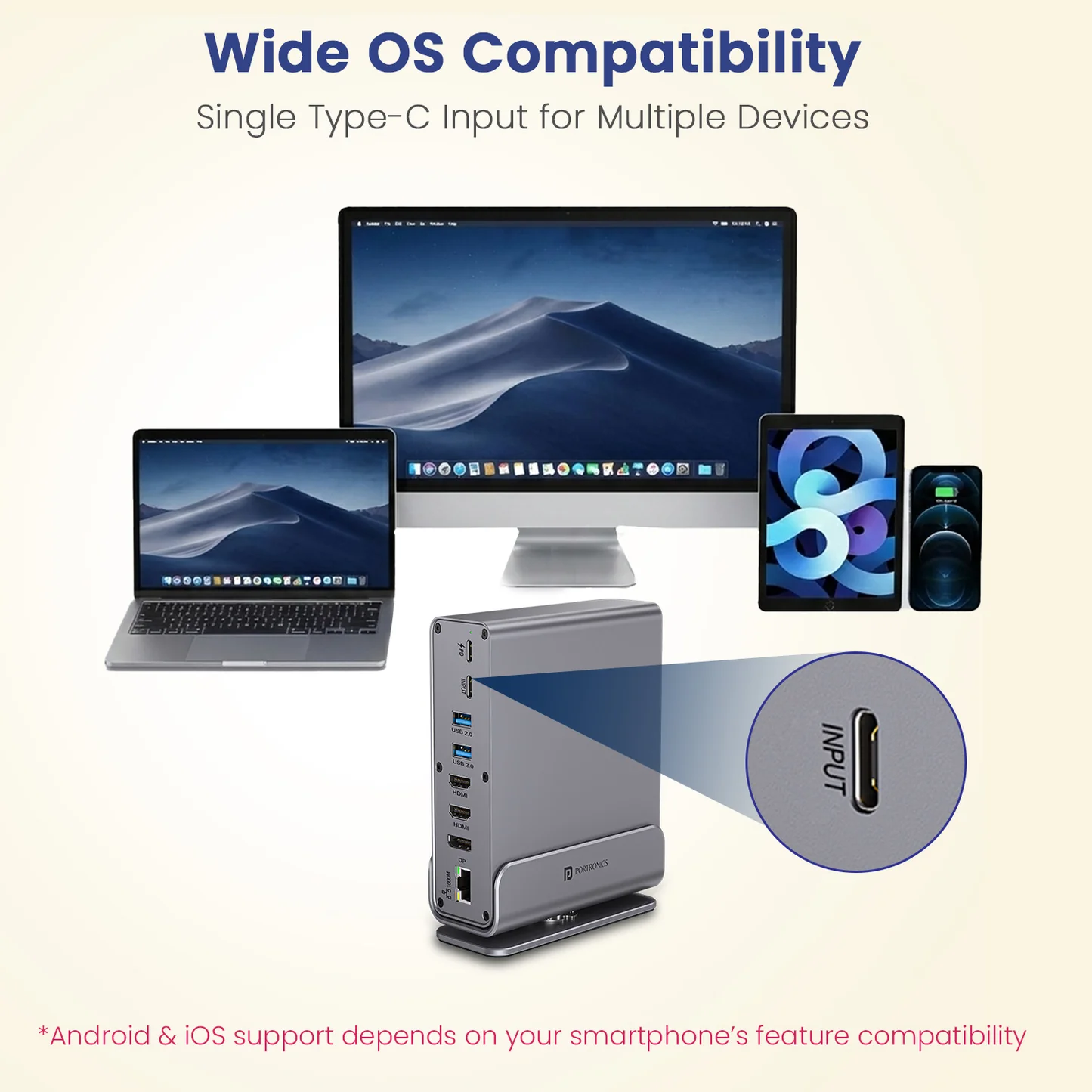
The Portronics Mport Vault Pro is a 15-in-1 USB-C docking station designed to convert a single USB-C port into a complete workstation. It supports high-speed data transfer, dual display output, Ethernet connectivity, and power delivery, making it suitable for laptops, tablets, and smartphones.
It enables users to connect multiple peripherals simultaneously, improving productivity and connectivity.
2. Key Specifications
- Interface: USB-C 3.2
- Material: Aluminum alloy body with TPE cable
- Color: Grey
- Power Delivery: 5V–20V / 5A (Maximum 100W)
- Ethernet: Up to 1000 Mbps
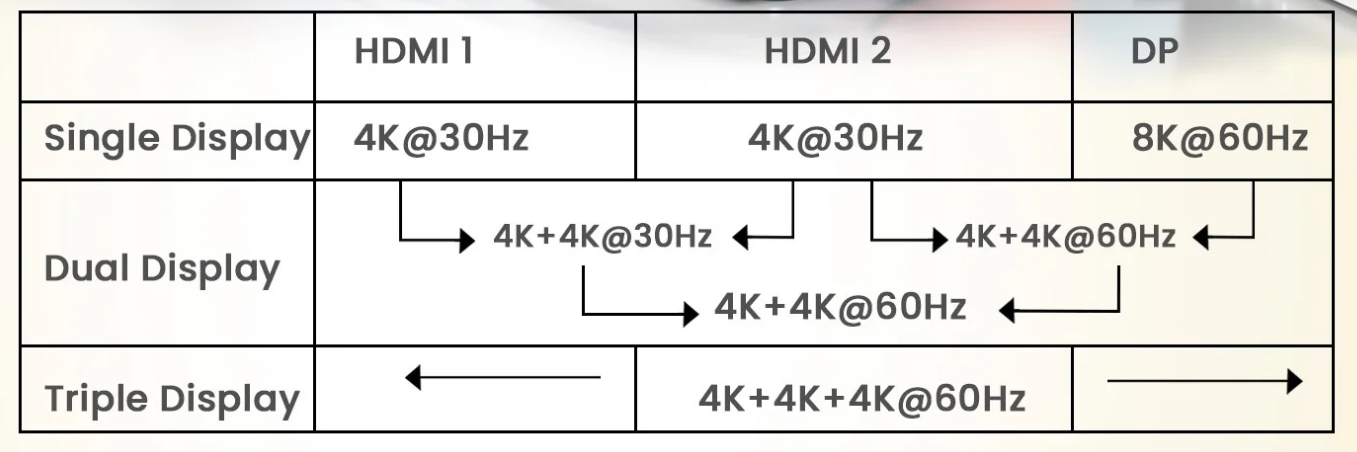
- Display Support: Dual 4K at 30Hz
3. Package Contents
- 1 × 15-in-1 Docking Station
- 1 × Thunderbolt cable
- 1 × User manual
4.Port Layout and Functions
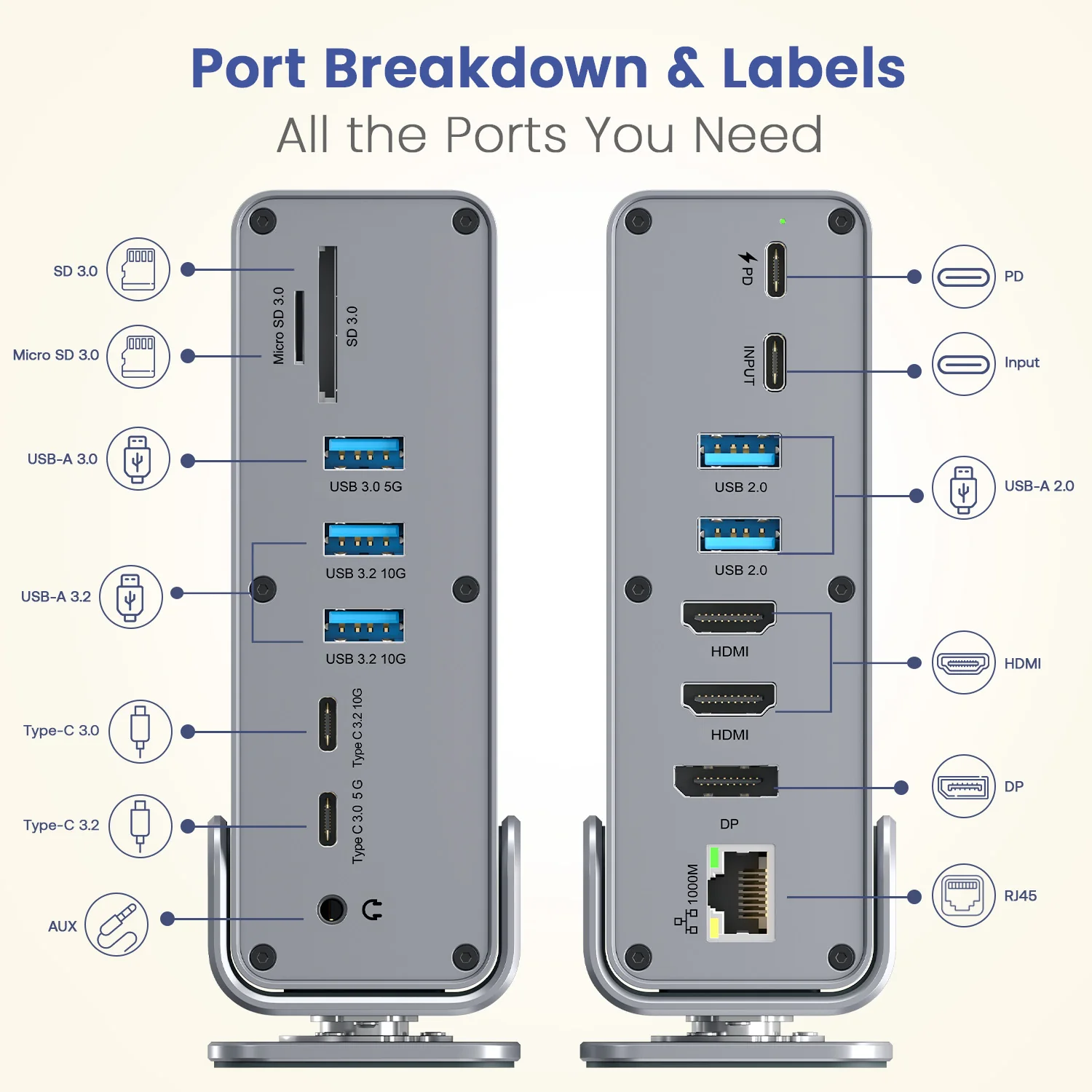
As shown in the diagram on page 1 of the manual, the device includes the following ports:
Power and Display
- USB-C PD (100W): Charges laptop while using the dock
- HDMI ports (2): Connect to external displays (up to 4K)
- DisplayPort (1): Alternate display connection
Data Transfer Ports
- USB-A 3.2 (10Gbps): High-speed data transfer
- USB-A 3.0 (5Gbps): Fast data transfer
- USB-A 2.0: For keyboard, mouse, printer
USB-C Data Ports
- USB-C 3.2 (10Gbps): High-speed data transfer
- USB-C 3.0 (5Gbps): Fast data transfer
Connectivity and Media
- RJ45 Ethernet: Wired internet up to 1000 Mbps
- 3.5mm Audio Jack: Headphones, mic, speakers
- TF Card Slot: Memory card reader
- SD Card Slot: SD card reader
5. Compatibility
Apple Devices
- MacBook 12-inch
- MacBook Pro (2016–2020)
- MacBook Air
- Mac Mini
- iPad Pro (2018 and later)
Windows Devices
- Dell XPS series
- HP EliteBook
- Lenovo ThinkPad, Yoga, ROG series
Other Devices
- Samsung Galaxy series
- Huawei Mate/P series
- Microsoft Surface devices
- LG and Razer smartphones
6. Setup and Usage
Step 1: Connect the Dock
Plug the Thunderbolt cable into your device
Step 2: Connect Power (Optional)
Attach a USB-C PD charger to enable pass-through charging up to 100W
Step 3: Connect Peripherals
Connect monitors, keyboard, mouse, storage devices, Ethernet, or audio devices
Step 4: Start Using
The device works automatically without drivers (plug-and-play)
7. Performance Capabilities
- Supports dual external displays up to 4K resolution at 30Hz
- Enables high-speed data transfer through USB 3.2 ports
- Provides stable wired internet connection
- Allows simultaneous use of multiple devices
8. Safety and Care Instructions
- Use only certified USB-C PD adapters
- Avoid low-quality HDMI or DisplayPort cables
- Keep away from moisture, heat, and magnetic fields
- Do not disassemble the device
9. Troubleshooting
The docking station is not detected
- Check whether your device has a Thunderbolt port.
- Reconnect the USB-C cable securely
- Try a different USB-C port
- Restart the device
- Ensure USB-C port supports data transfer
The external display is not working
- Check cable connections
- Verify monitor input source
- Confirm device display support
- Restart the system.
Dual display issues
- Confirm dual display compatibility on your other Device.
- Check display settings
- Use quality cables
- Verify correct port usage
Ethernet not working
- Check cable connection
- Verify network settings
- Try another cable or port
- Restart the router.
USB ports not working
- Reconnect device
- Test with another USB
- Avoid overload
- Restart the system.
Slow data transfer
- Use USB 3.2 ports
- Reduce connected devices
- Check device capability
Charging not working
- Use compatible PD charger
- Verify wattage support
- Check the cable.
- Try different adapter
Audio not working
- Check audio settings
- Select correct output device
- Reconnect cable
SD/TF card not detected
- Reinsert card
- Check compatibility
- Try another card
Overheating
- Disconnect unused devices
- Ensure ventilation
- Avoid high temperatures
Unstable performance
- Check cable stability
- Avoid loose connections
- Use power adapter
- Reduce load
10. Practical Usage Tips
- Connect power adapter when using multiple devices
- Use high-quality cables
- Keep device on flat surface for heat dissipation
- Safely eject storage devices before removal
- Connect displays before powering on for better detection
Still Facing Issues?
If the issue persists after performing all troubleshooting steps, please Click here raise a support request.
Our support team will assist you further.
Was this article helpful?
That’s Great!
Thank you for your feedback
Sorry! We couldn't be helpful
Thank you for your feedback
Feedback sent
We appreciate your effort and will try to fix the article