1. Overview
The Portronics Glide Pro is a premium Bluetooth-enabled magnetic stylus designed for iPad models from 2018 to 2026. It provides a natural writing experience with palm rejection, tilt sensitivity, magnetic attachment, USB Type-C fast charging, and shortcut buttons for improved productivity. The stylus offers up to 9 hours of continuous usage and is suitable for note-taking, sketching, drawing, annotation, and creative work.
2. Full Specifications
| Category | Details |
|---|---|
| Product Type | Magnetic iPad Stylus |
| Compatibility | iPad Models (2018–2026) |
| Connectivity | Bluetooth |
| Battery Type | 110mAh Lithium Polymer Battery |
| Charging Port | USB Type-C |
| Charging Time | Approx. 1 Hour |
| Battery Backup | Up to 9 Hours |
| Palm Rejection | Yes |
| Tilt Sensitivity | Yes |
| Magnetic Attachment | Yes* |
| Replaceable Nib | Yes |
| Warranty | 6 Months |
Magnetic attachment and full functionality may vary depending on the iPad model.
3. In the Box
- Glide Pro Stylus ×1
- USB Type-C Charging Cable ×1
- Replacement Stylus Nib ×1
- User Manual ×1
4. Product Features
- Bluetooth Connectivity
- Compatible with iPad Models (2018–2026)
- Up to 9 Hours Battery Backup
- USB Type-C Fast Charging
- Palm Rejection
- Tilt Sensitivity
- Magnetic Attachment*
- Smooth & Precise Writing
- Replaceable Stylus Tip
- Shortcut Buttons
- Ergonomic Design
- Lightweight & Portable
5. Product Diagram
Ports & Components
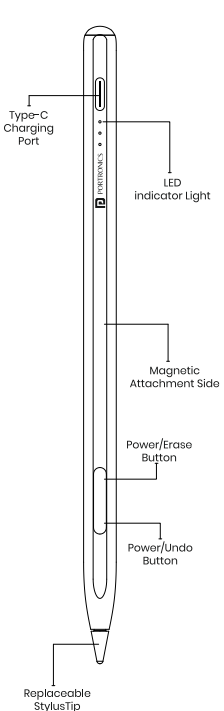
- USB Type-C Charging Port
- LED Battery Indicator
- Magnetic Attachment Side
- Power / Eraser Button
- Previous / Undo Button
- Replaceable Stylus Tip
6. Button Functions
Power / Eraser Button
| Action | Function |
|---|---|
| Single Press | Power ON/OFF |
| Single Click | Eraser |
| Double Click | App Switcher |
Previous / Undo Button
| Action | Function |
|---|---|
| Single Click | Undo |
| Double Click | Screenshot |
Note: Button functionality may vary depending on the application, iPad model, and iPadOS version.
7. Bluetooth Pairing
- Turn on the Glide Pro stylus.
- Enable Bluetooth on your iPad.
- Open Settings → Bluetooth.
- Select Glide Pro from the available devices.
- Once connected, the stylus is ready to use.
8. How to Use
- Press and hold the Power Button to turn on the stylus.
- Connect the stylus to your iPad via Bluetooth.
- Pair the stylus by selecting Glide Pro from the Bluetooth device list.
- Once connected, writing, drawing, and shortcut functions are ready to use.
- Attach the stylus magnetically to the side of compatible iPads for convenient storage.
- Press and hold the Power button to turn OFF the stylus after use.
9. App Compatibility
Glide Pro supports:
- GoodNotes
- Notability
- Apple Notes
- Procreate
- Freeform
- PDF Annotation Apps
- Most note-taking and drawing applications supporting Apple Pencil input.
Some shortcut button functions may vary depending on the application and iPadOS version.
10. Compatible iPad Models
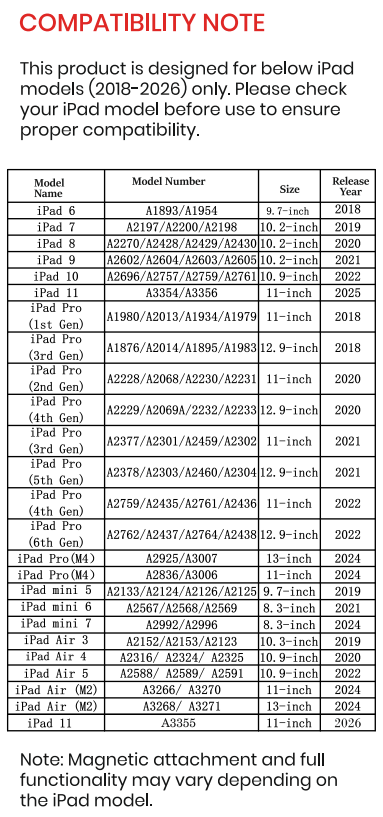
Compatible with supported Apple iPad models released between 2018 and 2026, including supported:
- iPad
- iPad Air
- iPad mini
- iPad Pro
Refer to the compatibility table in the user manual for the complete list of supported model numbers.
11. Charging Instructions
Charging
- Charge the stylus using the supplied USB Type-C cable.
- The LED battery indicator displays the charging status.
LED Battery Indicator
- 4 LEDs ON: 75–100%
- 3 LEDs ON: 50–75%
- 2 LEDs ON: 25–50%
- 1 LED ON: Below 25%
A full charge takes approximately 1 hour and provides up to 9 hours of continuous use.
12. Nib Replacement
- Hold the stylus firmly.
- Gently pull out the old nib.
- Insert the replacement nib into the stylus.
- Push it firmly until it is securely fitted.
- Ensure the nib is completely seated before use.
13. Care & Maintenance
- Keep the stylus clean and dry.
- Avoid dropping or applying excessive force.
- Replace the nib if worn or damaged.
- Store in a cool, dry place.
- Charge periodically to maintain battery health.
- Do not expose the stylus to water or excessive heat.
14. Warranty & Support
Warranty: 12 Months Manufacturer Warranty against manufacturing defects.
Need Help?
Visit: support.portronics.com
Was this article helpful?
That’s Great!
Thank you for your feedback
Sorry! We couldn't be helpful
Thank you for your feedback
Feedback sent
We appreciate your effort and will try to fix the article