TABLE OF CONTENTS
- 1. Introduction
- 2. Technical Parameters
- 3. Button Functions
- 4. Wireless Charger Use
- 5. Starting Up
- 6. Mobile Phone Connection
- 7. TWS Couplet Function
- 8. Light Use
- 9. FM Radio
- 10. TF Card / U Disk Playback
- 11. Clock Setting
- 12. Alarm Clock Setting
- 13. White Noise Use
- 14. How to Disable Bluetooth
- 15. Safety Instructions
- 16. Support
1. Introduction
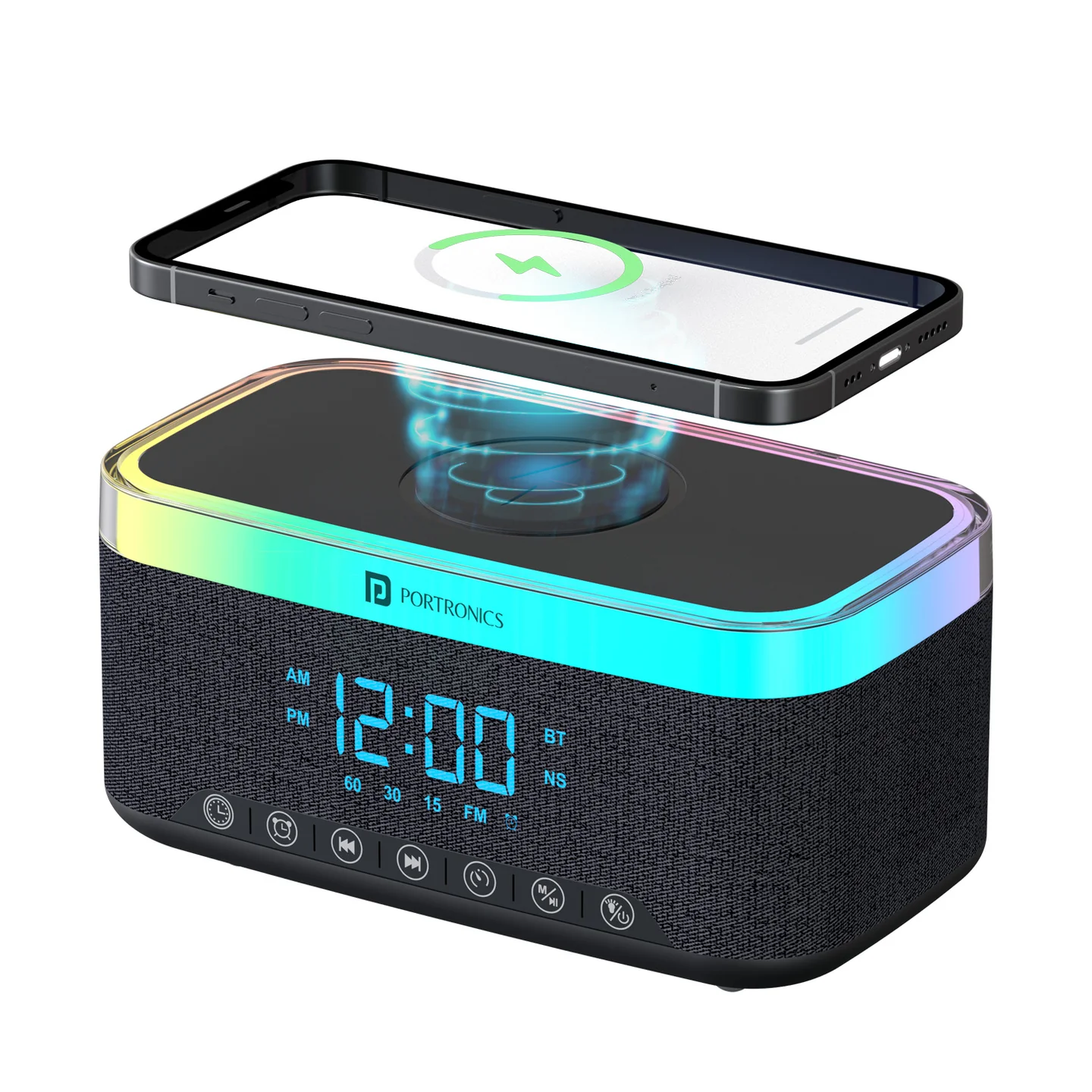
Thank you for choosing the Portronics TriFusion. TriFusion combines a 16W Bluetooth speaker, a 15W wireless charging pad, 360° RGB lighting, a digital alarm clock, FM radio, TF card/U disk playback, and a built-in white noise machine in one device.
2. Technical Parameters
| Specification | Details |
|---|---|
| Wireless Charging Power | 15W |
| Bluetooth Version | 5.3 |
| Sound Output | 16W |
| Bluetooth Frequency | 2.4GHz–2.48GHz |
| Transmission Distance | 10 metres |
| Frequency Sound Range | 50Hz–20KHz |
| Signal-to-Noise Ratio | Greater than 75dB |
| Battery | Built-in lithium, 3.7V, charging input DC5V/500mA |
| Playtime | Up to 5 hours |
3. Button Functions
| Button | Function |
|---|---|
| Power Button | Long press: power on/off · Short press: light switch |
| Function Button (M) | Long press: switch BT/NS/FM mode · Short press: pause/play |
| Timer/Couplet Button | Short press: set timing (15/30/60 min) · Long press: Bluetooth TWS couplet |
| Next Button | Short press: next song · Long press: increase volume |
| Previous Button | Short press: previous song · Long press: decrease volume |
| Alarm Button | Alarm clock setting |
| Clock Button | Clock settings |
4. Wireless Charger Use
Simply place a compatible device on the charging pad — it plugs in and turns on automatically. For optimal performance, use a minimum 18W charging adapter to power TriFusion itself; wireless charging will not function when relying solely on the device's built-in battery.
5. Starting Up
- Long-press the power/light button for two seconds to start up — the default heating light turns on.
- TriFusion supports Bluetooth devices with A2DP. It boots by default into Bluetooth mode, with the Bluetooth indicator glowing blue and a voice prompt confirming it's waiting for pairing. Only in this state can it be paired and connected.
6. Mobile Phone Connection
- Open Bluetooth settings on your phone and search for devices.
- When "TRIFUSION" appears in the list, tap it to enter pairing mode.
- Once successfully paired, you'll hear a voice prompt and see the connection confirmed on the display.
7. TWS Couplet Function
Bluetooth mode only.
If you have two TriFusion speakers, long-press one of the keys to match them. Once Bluetooth-connected to each other, the two speakers automatically become the left and right channels, producing stereo surround sound for true wireless stereo.
Note: speakers must be from the same batch and in Bluetooth mode and shining a light while pairing—only in this state can they be paired for TWS.
8. Light Use
TriFusion is equipped with 13 lighting effects. It starts with the default warm lamp effect; press the light key to cycle and adjust the light.
9. FM Radio
- Long-press the "M" key to switch to FM function.
- Connect the charging cable to the Type-C port to use it as a radio antenna — the other end doesn't need to connect to anything.
- Press the pause button to start automatic station search; stations found are saved automatically.
- Use "+" / "–" to select among saved stations.
10. TF Card / U Disk Playback
Insert a TF card or U disk into the card slot — a voice prompt will confirm, and the product automatically reads and plays the audio files on it. Control playback with the speaker's "+" / "–" buttons.
11. Clock Setting
Press the time key to enter clock/minute setting mode, then press "+" / "–" to adjust the hour/minute.
12. Alarm Clock Setting
- Press the alarm button to enter clock/minute setting mode.
- Press "+" / "–" to adjust the hour/minute.
- Press the alarm key, then "+" / "–" to select your favourite alarm tone — there are 7 groups of alarm bells to choose from.
- Finally, press the alarm key again to open (activate) the alarm — an alarm mark appears on the screen once set successfully.
- When the alarm rings, press any key to close it. If no key is pressed, it automatically turns off after 1 minute.
- The alarm will still ring normally even when the speaker is powered off — cancel it beforehand if you don't want that.
- To cancel the alarm: long-press the alarm key — the alarm mark disappears from the screen once cancelled.
13. White Noise Use
To switch to white noise mode, press "M," then choose your favourite sleep sound.
14. How to Disable Bluetooth
For devices in Batch No. 24/11, Bluetooth is turned on by default, shown as a "BT" symbol on the right side of the clock display. To disable Bluetooth mode, press the "M" key three times — the "BT" symbol disappears from the display. With Bluetooth off, the speaker won't connect to phones or other devices.
15. Safety Instructions
- Do not expose the product to water or humid areas, such as bathrooms.
- Do not hit or drop the product, to avoid manual damage.
- When not in use for a long time, turn off the power.
16. Support
If the issue persists after performing all troubleshooting steps, please raise a support request.
Our support team will assist you further.
Support
- Visit: www.portronics.com
- Support Portal: support.portronics.com
- Short Demo video-Click here.
Was this article helpful?
That’s Great!
Thank you for your feedback
Sorry! We couldn't be helpful
Thank you for your feedback
Feedback sent
We appreciate your effort and will try to fix the article