TABLE OF CONTENTS
- 1. Introduction
- 2. Product Specifications
- 3. Power Switch
- 4. Button Functions
- 5. Rear Panel
- 6. Getting Started
- 7. TWS (True Wireless Stereo) Mode
- 8. Bass Boost
- 9. RGB Lighting
- 10. Support
1. Introduction
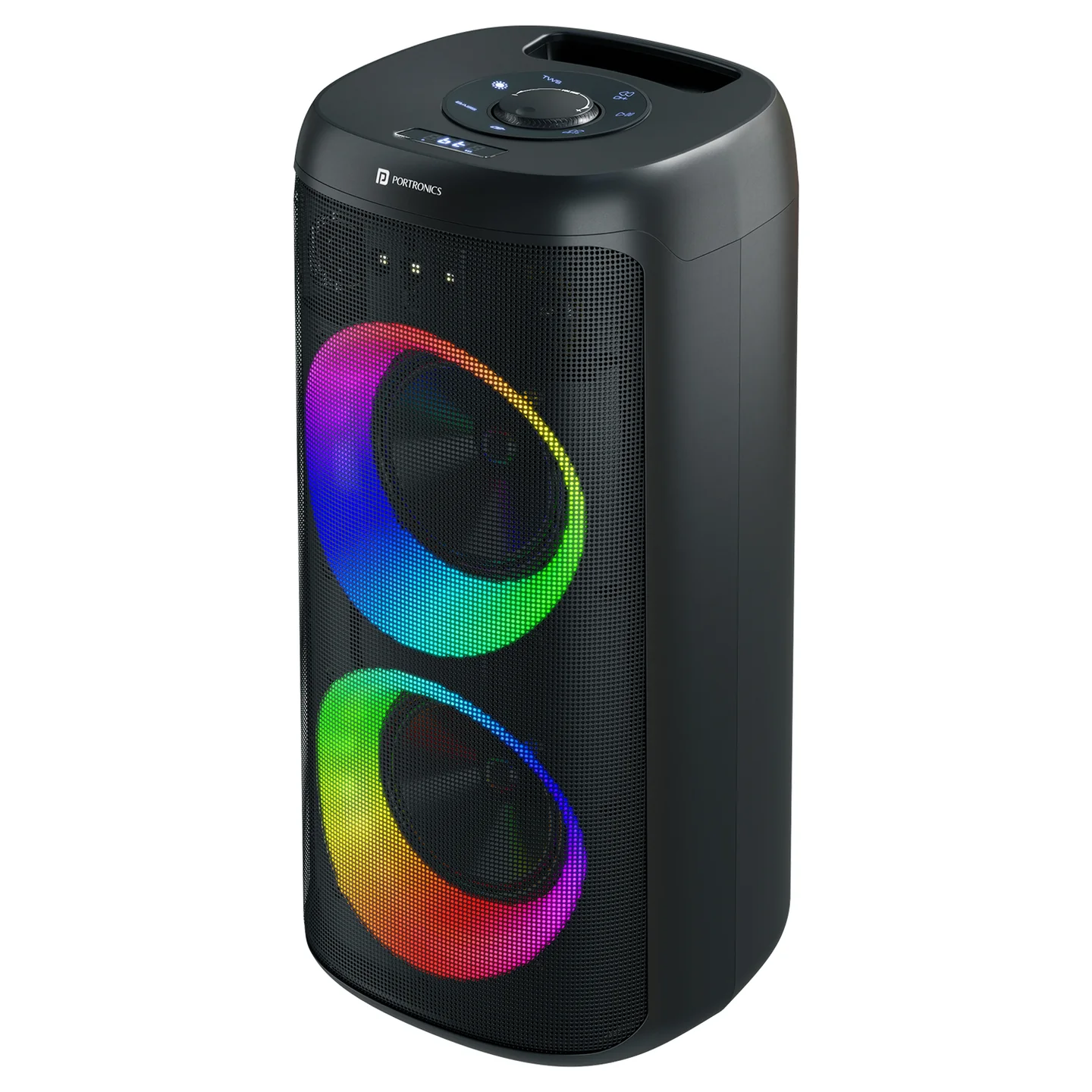
Dash 14 is a 120W party speaker with dual bass drivers, Bass Boost technology, dynamic RGB LED lighting, a wireless karaoke mic, guitar/mic input with reverb control, and TWS pairing support.
2. Product Specifications
| Specification | Details |
|---|---|
| Model | Dash 14 |
| Product Code | POR 3434 |
| Colour | Black |
| Bluetooth Version | 5.3 |
| Bluetooth Working Range | Less than 10m |
| Speaker Power | 120W |
| Signal to Noise Ratio | 75 |
| Frequency Response | 40Hz–20kHz |
| Charging Voltage | 5V/3A |
| Charging Port | Type-C |
| Battery | 7.4V, 4000mAh lithium battery |
| Playtime | Up to 4 hours |
| Technology | Bass Boost |
| Warranty | 12 months |
=
3. Power Switch
Press the Power Button to turn Dash 14 ON or OFF.
4. Button Functions
| # | Button | Function |
|---|---|---|
| 1 | INPUT | Short press: switch between BT/USB/FM/AUX modes. The speaker starts in Bluetooth (BT) mode when powered on. |
| 2 | PLAY | Short press: play/pause music · Long press (FM mode): auto-scan and save all FM stations · Long press (BT mode): clear Bluetooth pairing — long press again to reconnect |
| 3 | PREV | Short press: previous track or FM station (not functional in AUX mode) |
| 4 | NEXT | Short press: next track or FM station (not functional in AUX mode) |
| 5 | RGB Lighting | Short press: cycle through LED effects (LED1 → LED5 → OFF) |
| 6 | TWS | Short press (BT mode): pair with another Dash 14 speaker |
| 7 | BASS | Press once: enable Bass Boost · Press again: turn Bass Boost off |
| 8 | Volume Encoder | Rotate to adjust volume (0–30) — default volume is 20 |
5. Rear Panel
| # | Element | Function |
|---|---|---|
| 1 | USB Port | Insert a USB flash drive to play files — supports MP3, WAV, WMA, and FAT32 formats, up to 32GB |
| 2 | GT Volume Knob | Adjusts guitar input volume, levels 0–30 |
| 3 | MIC Volume Knob | Adjusts microphone input volume, levels 0–30 |
| 4 | Reverb Knob | Adjusts reverb level, 0–16 |
| 5 | AUX Input | External audio input, supports 3.5mm stereo audio |
| 6 | GT Input Jack | Guitar input — no reverb applied |
| 7 | MIC Input Jack | Wired microphone input — with reverb |
| 8 | Power Switch | ON turns the speaker on, OFF turns it off |
| 9 | DC 5V Charging Input | Battery charging input, rated 5V/3A |
6. Getting Started
- Press the Power Switch to turn Dash 14 on — it starts in Bluetooth mode by default.
- Press the INPUT button to cycle between Bluetooth, USB, FM, and AUX modes as needed.
- For Bluetooth: open Bluetooth settings on your phone and select "Dash 14" to pair.
- For USB: insert a USB flash drive (MP3/WAV/WMA, FAT32, up to 32GB) and use PLAY/PREV/NEXT to control playback.
- For FM: switch to FM mode, then long-press PLAY to auto-scan and save local stations.
- For AUX: connect a 3.5mm cable to the AUX input.
- Connect the wireless karaoke mic or a wired mic/guitar via the MIC/GT input jacks, and adjust their volume and reverb using the dedicated knobs.
7. TWS (True Wireless Stereo) Mode
- Make sure both speakers are in Bluetooth (BT) mode.
- Short-press the TWS button on one Dash 14 speaker to pair it with another Dash 14.
Important: TWS pairing is only guaranteed to work reliably between two Dash 14 units from the same production batch. Pairing speakers from different batches may fail or behave inconsistently — check the batch/date code on each unit if TWS pairing doesn't work between two otherwise-identical speakers.
8. Bass Boost
Press the BASS button once to enable Bass Boost for deeper low-end. Press it again to turn Bass Boost off.
9. RGB Lighting
Short-press the RGB Lighting button to cycle through the LED effects, from LED1 through LED5, and finally OFF.
10. Support
If the issue persists after performing all troubleshooting steps, please raise a support request.
Our support team will assist you further.
Support
- Visit: www.portronics.com
- Support Portal: support.portronics.com
Was this article helpful?
That’s Great!
Thank you for your feedback
Sorry! We couldn't be helpful
Thank you for your feedback
Feedback sent
We appreciate your effort and will try to fix the article