TABLE OF CONTENTS
- Quick Reference
- Connections
- Key Features
- First Setup
- Projection Setup
- Wi-Fi
- Bluetooth
- Screen Mirroring
- USB / HDMI
- Audio
- Battery & Charging
- Setup Tutorial
- Still stuck?
Quick Reference
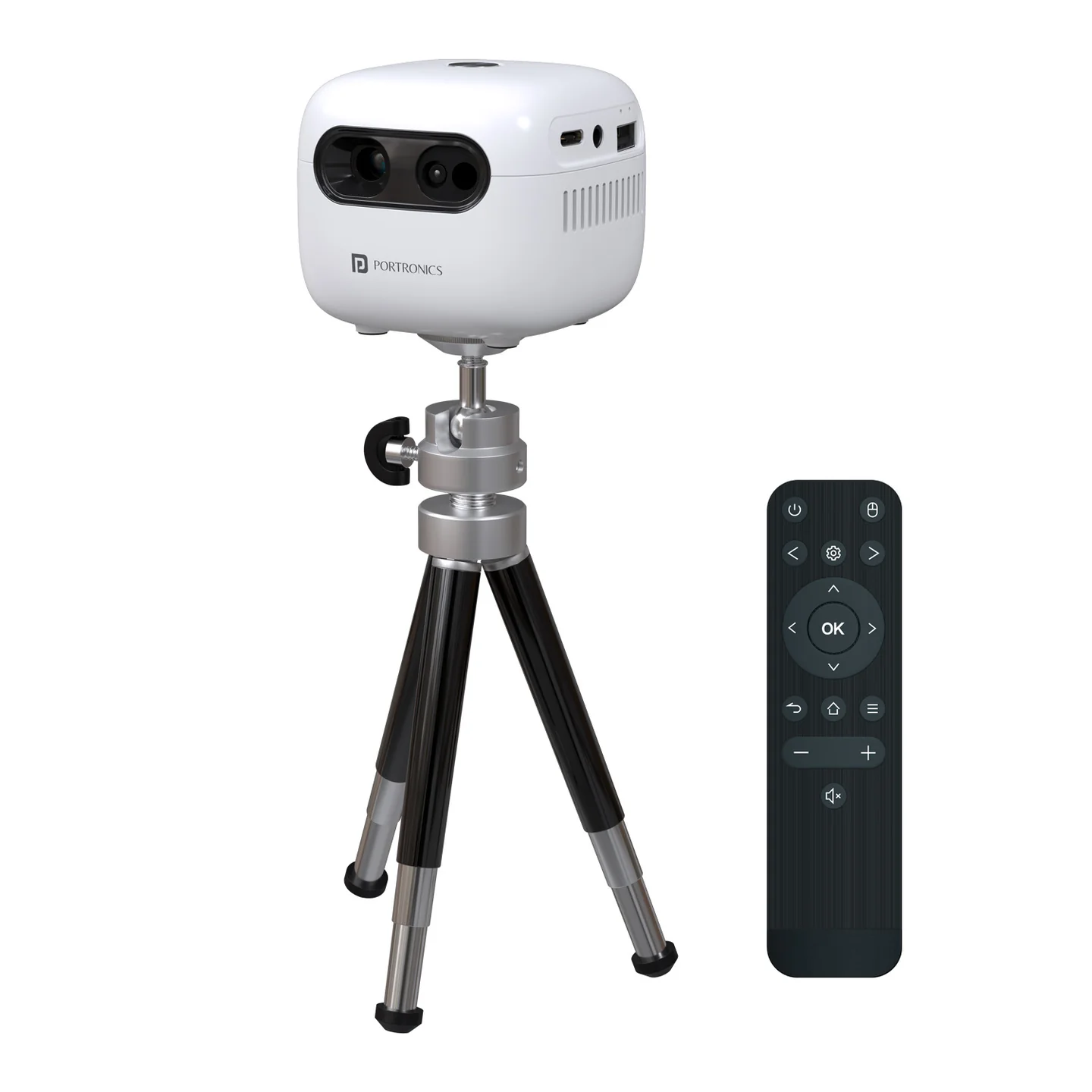
| Feature | Details |
|---|---|
| Product | Pico 14 |
| Product Code | POR 3195 |
| Type | Smart DLP Projector |
| Resolution | Native 720p |
| Max Projection | Up to 100" |
| Brightness | 1600 Lumens / 90–100 ANSI Lumens |
| OS | Android 13 |
| Wi-Fi | Dual-band 2.4GHz + 5.8GHz |
| Bluetooth | 5.4 |
| Battery | 4800mAh, 3.7V |
| Battery Runtime | Up to 60 minutes |
| Speaker | 3W built-in |
| Lamp Life | Up to 30,000 hours |
| Size | 73 × 73 × 60 mm |
| Weight | 250g |
| Included | Tripod |
Connections
| Port / Feature | Use |
|---|---|
| HDMI IN 2.0 | Connect HDMI devices |
| USB-A 2.0 | Media playback |
| USB-C | Charging + video input |
| 3.5mm AUX / Audio Out | External audio |
| Wi-Fi | Internet / smart apps / casting |
| Bluetooth 5.4 | Wireless audio / compatible devices |
| Wireless Screen Mirroring | Mirror supported phones/devices |
Key Features
| Feature | Details |
|---|---|
| Focus | Autofocus + remote focus |
| Keystone | Auto vertical + manual horizontal |
| Zoom | Optical zoom |
| Source | Auto source detection |
| Orientation | Auto rotate |
| Noise | <25 dB in Eco mode |
| Input Support | Accepts up to 4K input |
| Smart OS | Android 13 |
| Streaming | Supports popular streaming apps |
First Setup
Place Pico 14 on a stable surface or use the included tripod.
Connect power or charge the projector for portable use.
Switch it ON.
Allow the projector to complete startup.
Point it toward the desired projection surface.
Use autofocus and auto vertical keystone to correct the image.
Connect to Wi-Fi for Android 13 smart features and streaming.
Select the required input/source when using HDMI, USB or USB-C.
Projection Setup
| Adjustment | What to Do |
|---|---|
| Focus | Use autofocus or remote focus |
| Vertical alignment | Use auto vertical keystone |
| Horizontal alignment | Use manual horizontal correction |
| Image size | Use optical zoom |
| Orientation | Auto rotate can adjust orientation |
Wi-Fi
Connect Pico 14 to a 2.4GHz or 5.8GHz Wi-Fi network from the projector's network settings.
A stable internet connection is recommended for streaming apps and online content.
Bluetooth
Turn on Bluetooth on the compatible device, search for Pico 14, and pair when it appears.
Screen Mirroring
Use the projector's wireless screen-mirroring function and follow the connection instructions shown on the projector.
USB / HDMI
USB-A: Insert compatible media and select USB as the source.
HDMI: Connect the HDMI source and select HDMI.
USB-C: Use a compatible USB-C video source when supported.
Audio
Pico 14 has a built-in 3W speaker. You can also use the 3.5mm AUX / Audio Out connection for compatible external audio.
Battery & Charging
| Item | Details |
|---|---|
| Battery | 4800mAh |
| Battery Voltage | 3.7V |
| Playback/Projection | Up to 60 minutes |
| Charging Port | USB-C |
Battery runtime can vary with brightness, volume, source and usage conditions.
Setup Tutorial
The tutorial covers the setup and connection process step-by-step.
Still stuck?
If the issue persists after performing all troubleshooting steps, please raise a support request.
Our support team will assist you further.
Support
Visit: www.portronics.com
Support Portal: support.portronics.com
Was this article helpful?
That’s Great!
Thank you for your feedback
Sorry! We couldn't be helpful
Thank you for your feedback
Feedback sent
We appreciate your effort and will try to fix the article