TABLE OF CONTENTS
- Product Overview
- Quick Reference
- What's in the Box
- Button & LED Guide
- Power On & Bluetooth Pairing
- Reconnecting to Bluetooth
- Music Controls
- Calls & Voice Assistant
- Game Mode and Motor Switch
- Connecting Two Devices
- Charging
- Playtime
- Care & Safety
- Still stuck?
Product Overview
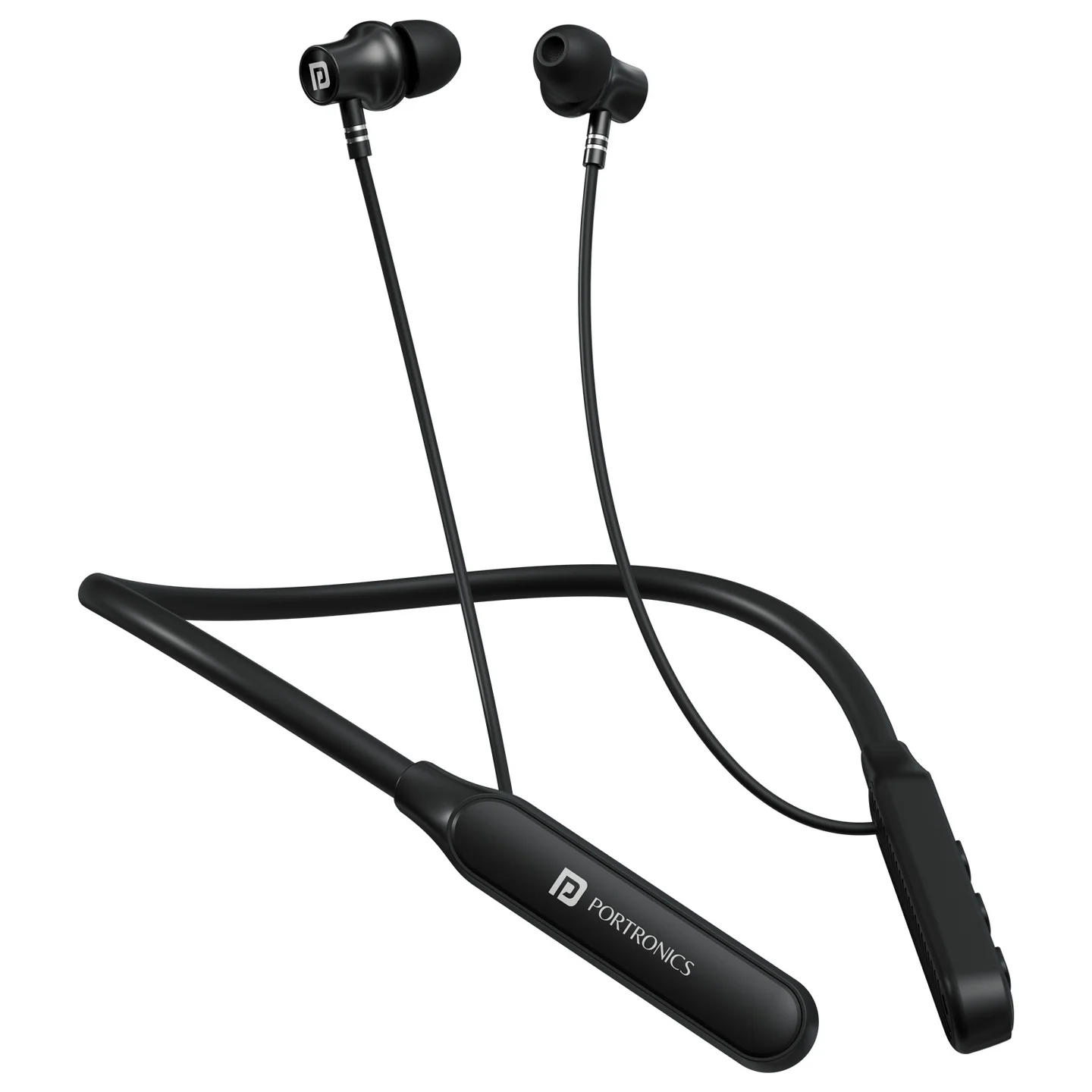
The Portronics Harmonics Z14 is a wireless neckband headset with 10mm drivers, Bluetooth 6.0, call controls, Game Mode and USB Type-C charging.
Quick Reference
| Feature | Details |
|---|---|
| Product Code | POR 3305 |
| Bluetooth | 6.0 |
| Driver Size | 10mm |
| Impedance | 16Ω |
| Wireless Frequency | 2.4–2.48GHz |
| Wireless Range | Up to 10 metres |
| Charging | Type-C, 5V/1A |
| Charging Time | Approx. 3 hours |
| Playtime | up to 35 hours |
| Special Modes | Game Mode and Motor Switch |
| Operating Temperature | −10°C to 60°C (manual) |
What's in the Box
| Item | Quantity |
|---|---|
| Harmonics Z14 Neckband | 1 |
| Charging Cable | 1 |
| Earbuds | 1 pair |
| User Manual | 1 |
Button & LED Guide
| Action | Control |
|---|---|
| Power ON | Press and hold MFB for about 2 seconds |
| Power OFF | Press and hold MFB for about 4 seconds |
| Play / Pause | Click MFB once |
| Answer / End Call | Click MFB once |
| Reject Call | Long-press MFB |
| Voice Assistant | Press and hold MFB for about 2 seconds |
| Volume Up / Down | Click the corresponding + / − button once |
| Next Track | Press and hold Volume + |
| Previous Track | Press and hold Volume − |
| Game Mode | Double-click after pairing |
| Motor Switch | Triple-click after pairing |
| Disconnect Earphones | Click 5 times quickly |
LED Indicators
| LED | Meaning |
|---|---|
| Blue flashes 3 times | Power ON |
| Red flashes 3 times | Power OFF |
| Red and blue blink alternately | Pairing mode |
| Indicator turns off | Connected |
| Red stays on | Charging |
| Red turns off | Fully charged |
Power On & Bluetooth Pairing
- Press and hold the MFB for about 2 seconds to turn on the headset.
- Open Bluetooth settings on your phone.
- Search for Harmonics Z14 and select it.
- A prompt tone confirms connection and the indicator turns off.
If the headset is not connected within 3 minutes of startup, it automatically shuts down to save battery.
Reconnecting to Bluetooth
- Turn on the headset.
- Enable Bluetooth on the phone.
- Select Harmonics Z14 from saved devices.
- Keep the phone within about 10 metres for a stable connection.
Music Controls
- Play / Pause: click MFB once.
- Volume Up / Down: click Volume + / − once.
- Next Track: press and hold Volume +.
- Previous Track: press and hold Volume −.
Calls & Voice Assistant
- Answer / End call: click MFB once.
- Reject incoming call: long-press MFB.
- Voice assistant: press and hold MFB for about 2 seconds.
Game Mode and Motor Switch
- Game Mode: double-click the MFB after pairing.
- Motor Switch: triple-click the MFB after pairing.
- Disconnect earphones: click the MFB five times quickly.
Connecting Two Devices
- Pair the headset with Device 1.
- Turn Bluetooth OFF on Device 1.
- Pair the headset with Device 2.
- Turn Bluetooth back ON on Device 1.
- Both devices should then be connected.
Charging
- Connect a USB Type-C cable to the headset.
- Use a suitable 5V/1A USB power source.
- The red LED stays on while charging and turns off when charging is complete.
- Charging time is about 3 hours.
Playtime
Up to 35 hours. Actual playtime varies with volume, calls, Bluetooth conditions and usage.
Care & Safety
- Avoid extreme heat, cold and humidity.
- Do not drop or crush the headset.
- Avoid sharply bending or pulling the neckband cable.
- Keep the charging port dry and use suitable, undamaged charging accessories.
- If you experience discomfort, lower the volume or stop listening.
- Avoid prolonged listening at maximum volume.
Still stuck?
If the issue persists after all troubleshooting steps, please raise a support request.
Our support team will assist you further.
Support
- Visit: www.portronics.com
- Support Portal: support.portronics.com
Was this article helpful?
That’s Great!
Thank you for your feedback
Sorry! We couldn't be helpful
Thank you for your feedback
Feedback sent
We appreciate your effort and will try to fix the article