TABLE OF CONTENTS
- Product Overview
- Quick Reference
- What's in the Box
- System Setup
- Power and Standby
- Switching Input Modes
- Bluetooth Pairing
- HDMI Connection
- Optical Connection
- USB Playback
- AUX Connection
- Remote Control Guide
- Soundbar Button Functions
- EQ Modes and Sound Adjustment
- Mute and Volume
- Troubleshooting
- Care & Safety
- Still stuck?
Product Overview
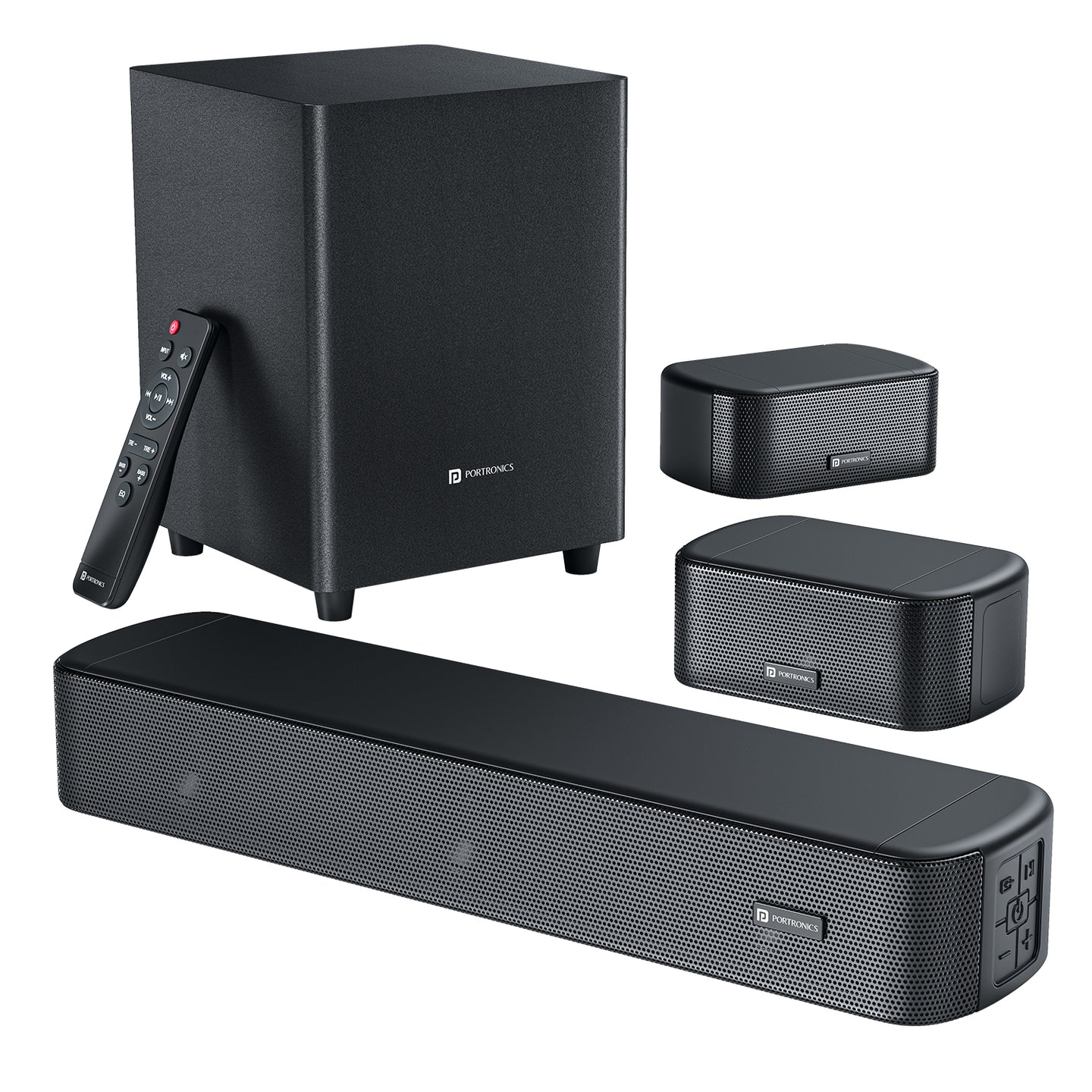
The Portronics Pure Sound Pro X2 is a 150W 5.1-channel home theatre system with a soundbar, wired subwoofer and two satellite speakers. It supports Bluetooth, HDMI, Optical, USB and AUX connections, along with preset EQ modes, adjustable bass and treble, and remote control.
Quick Reference
| Feature | Details |
|---|---|
| Product | Portronics Pure Sound Pro X2 |
| Product Code | POR 3496 |
| Audio Output | 150W |
| Channel Configuration | 5.1 channel |
| Soundbar Speakers | 3 × 2-inch |
| Subwoofer | 1 × 4.5-inch, wired |
| Satellite Speakers | 2 × 2-inch |
| Bluetooth | 5.4 |
| Frequency Response | 40Hz–20kHz |
| Signal-to-Noise Ratio | 80 |
| Inputs | Bluetooth, HDMI, Optical, USB and AUX |
| Satellite Cable Length | 5 metres |
| Sound Modes | Music, Movie, News and 3D modes |
| Soundbar Dimensions | 410 × 100.5 × 65mm |
| Subwoofer Dimensions | 182 × 182 × 248mm |
| Satellite Speaker Dimensions | 150 × 104.7 × 62mm |
What's in the Box
| Item | Quantity |
|---|---|
| Soundbar | 1 |
| Subwoofer | 1 |
| Satellite Speakers | 2 |
| Remote Control | 1 |
| Wall-Mounting Accessories | 1 set |
| User Manual | 1 |
System Setup
- Place the soundbar near your TV or audio source on a stable surface.
- Position the two satellite speakers where you want them in the room.
- Connect the satellite speakers using their supplied cables. The manual lists a satellite wire length of 5 metres.
- Connect the wired subwoofer to the soundbar using the designated subwoofer connection.
- Connect the soundbar's power cable/adapter to its power input and a suitable power outlet.
- Short-press the Power button on the soundbar or remote to turn it on from standby.
Make sure the cables are connected to their matching ports. Do not force a connector into a port.
Power and Standby
- Power ON: Short-press the Power button on the soundbar or remote when the system is in standby.
- Standby: Press the Power button again.
- The display/indicator shows the current input mode, such as BT, OPT, HDMI, USB or AUX.
Switching Input Modes
Press the INPUT button on the remote to switch between the available inputs:
| Input Mode | Use |
|---|---|
| Bluetooth (BT) | Wireless audio from a paired phone, tablet or computer |
| Optical (OPT) | Digital optical audio from a compatible TV or device |
| HDMI | Audio from a compatible HDMI source; the official listing describes HDMI ARC support |
| USB | Audio playback from a compatible USB drive |
| AUX | Analogue audio from a compatible audio source |
The display indicates the selected input. Select the same input that your source device is connected to.
The soundbar's Mode button can also cycle through input modes; the exact set of options may depend on the control being used.
Bluetooth Pairing
- Turn on the system.
- Select BT mode using the INPUT button.
- Open Bluetooth settings on your phone, tablet, laptop or other compatible device.
- Search for Pure Sound Pro X2.
- Select it to connect.
- Start audio playback after pairing is complete.
Keep the source device within range for a stable connection.
Disconnecting and Clearing Bluetooth Pairing
In Bluetooth mode, press and hold the Play/Pause or Pair control as described in the manual to disconnect the device and clear pairing history. The manual notes that this can clear the pairing history even while a device is connected.
To pair again:
- Remove/forget Pure Sound Pro X2 from the source device's Bluetooth settings if it is still saved.
- Select BT mode on the soundbar.
- Search for Pure Sound Pro X2 again.
- Select it to connect.
HDMI Connection
- Connect a compatible HDMI cable between the soundbar's HDMI/ARC connection and the TV or source device.
- If using a TV's ARC function, connect to the TV port labelled HDMI ARC.
- Press INPUT on the remote to select HDMI mode.
- If there is no audio, check the TV's audio output settings and select HDMI ARC or the appropriate external-speaker output.
Optical Connection
- Connect a compatible optical audio cable between the source device's optical output and the soundbar's OPT input.
- Select OPT mode using the remote's INPUT button.
- Open the TV or source-device audio settings and select optical/external audio output if required.
- Start playback and adjust the soundbar volume.
USB Playback
- Insert a compatible USB drive into the soundbar's USB port.
- Select USB mode using INPUT.
- Start playback if it does not begin automatically.
- Use the remote's playback and track controls to manage audio.
AUX Connection
- Connect a compatible AUX cable from the source device to the soundbar's AUX input.
- Select AUX mode using INPUT.
- Start playback on the source device.
- Use the remote to adjust volume or mute/unmute audio.
Remote Control Guide
| Remote Button | Function |
|---|---|
| Power | Short-press to power on or enter standby |
| MUTE | Short-press to mute/unmute in any mode |
| INPUT | Switch between BT, OPT, HDMI, USB and AUX |
| Play/Pause | In BT/USB mode: play/pause; in AUX/OPT/HDMI mode: mute/unmute |
| Previous / Next | In BT/USB mode: skip tracks; in USB mode, long-press for rewind/fast-forward |
| VOL + / VOL − | Adjust master volume; long-press for faster adjustment |
| TRE + / TRE − | Increase or decrease treble |
| BASS + / BASS − | Increase or decrease bass |
| EQ | Switch between EQ presets |
| RESET | Long-press to restore master volume, treble, bass and surround settings to default |
Important: Remote button behavior can vary with the active input mode. Point the remote toward the soundbar for best performance.
Soundbar Button Functions
| Button | Function |
|---|---|
| Power | Short-press to turn on from standby or return to standby |
| Mode | Cycle through input modes |
| Volume Down (−) | Short-press to reduce volume; long-press for previous track in Bluetooth/USB mode |
| Play/Pause | In Bluetooth/USB mode: play/pause; in AUX/HDMI mode: mute/unmute; long-press in Bluetooth mode to disconnect/reconnect |
| Volume Up (+) | Short-press to increase volume; long-press for next track in Bluetooth/USB mode |
EQ Modes and Sound Adjustment
Press EQ on the remote to switch between the sound presets. The supplied manual lists:
- Music
- Movie
- News
- 3D
The current product listing also refers to Night mode in product imagery, so use the mode names shown on your included remote if they differ.
Use TRE +/− to adjust high-frequency sound and BASS +/− to adjust low-frequency sound. To return settings to default, long-press RESET on the remote.
Mute and Volume
- Press MUTE on the remote to mute or unmute audio in any mode.
- Use VOL + / VOL − to adjust master volume.
- If sound is missing, confirm that the correct input is selected before changing volume.
- In AUX, Optical and HDMI modes, the Play/Pause control may act as Mute/Unmute rather than media playback.
Troubleshooting
No sound
- Check that the soundbar is powered on.
- Confirm the selected input matches the connected source.
- Check the source device's audio output settings and volume.
- Check that the soundbar, subwoofer and satellite speaker cables are securely connected.
- Try another input or source device if available.
Bluetooth pairing fails
- Select BT mode.
- Keep the source device nearby.
- Turn off other nearby Bluetooth devices if they are making the device search difficult.
- Clear the soundbar's saved pairing history and pair again.
Remote buttons seem to work differently
Some remote controls change functions depending on the input mode. Check the remote guide above and confirm whether BT, USB, OPT, HDMI or AUX is selected.
Care & Safety
- Place the soundbar, subwoofer and satellite speakers on stable surfaces.
- Keep ventilation openings unobstructed.
- Keep the system away from water, moisture and excessive heat.
- Use the supplied power adapter or a compatible one with the correct rating.
- Turn the system off before connecting or disconnecting cables.
- Keep cables arranged to prevent tripping or pulling.
- Do not open or modify the soundbar, subwoofer, remote or adapter.
- Avoid prolonged listening at maximum volume.
- Stop using the system if a cable, adapter or speaker is visibly damaged.
Still stuck?
If the issue persists after performing all troubleshooting steps, please raise a support request.
Our support team will assist you further.
Support
- Visit: www.portronics.com
- Support Portal: support.portronics.com
Was this article helpful?
That’s Great!
Thank you for your feedback
Sorry! We couldn't be helpful
Thank you for your feedback
Feedback sent
We appreciate your effort and will try to fix the article