TABLE OF CONTENTS
- Product Overview
- Quick Reference
- What's in the Box
- Parts & Controls
- Charging a Device
- Recharging the Luxcell 100R
- Understanding the Digital Display
- Charging More Than One Device
- Getting the Best Charging Performance
- Safety Instructions
- Care & Maintenance
- Still stuck?
Product Overview
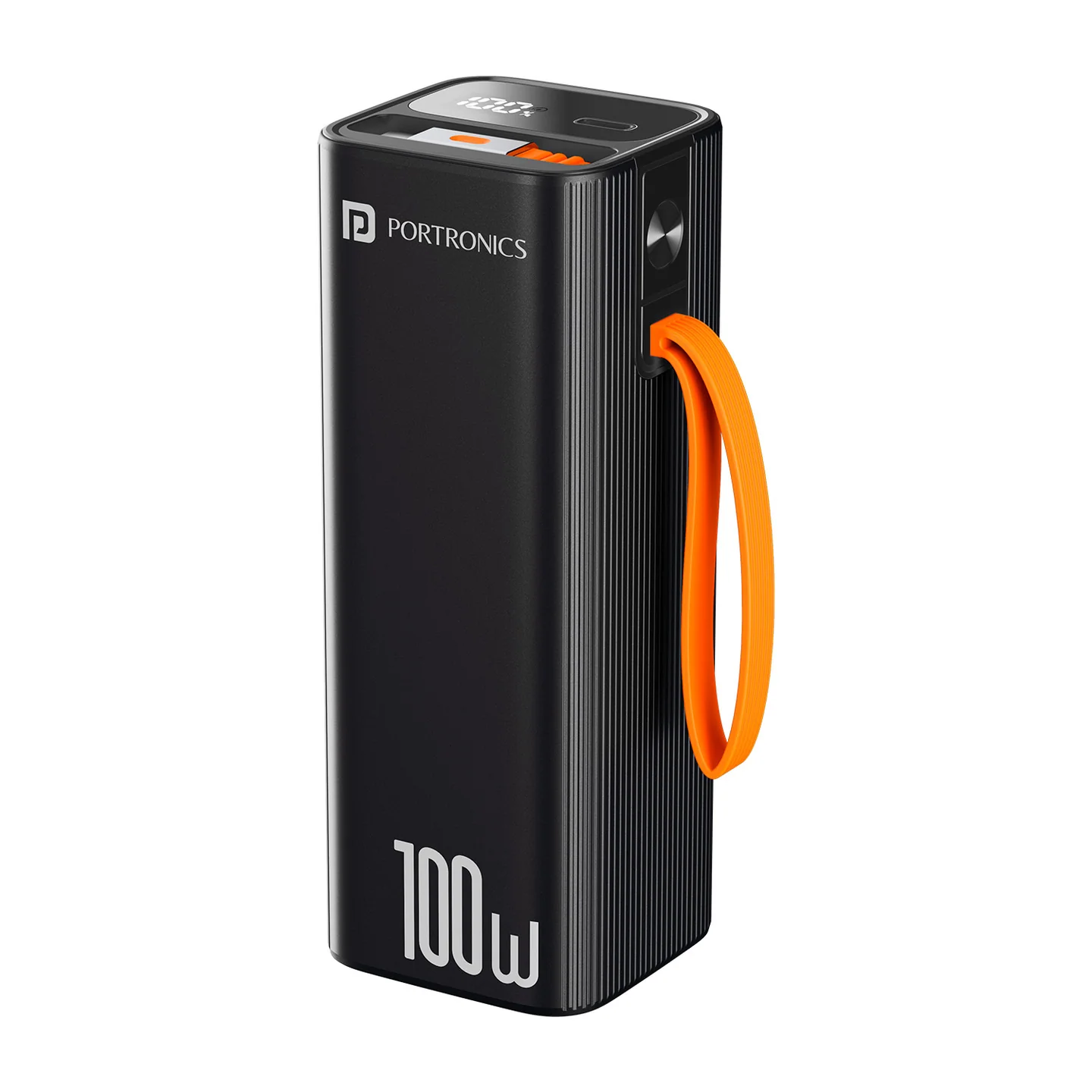
The Portronics Luxcell 100R is a 20,000mAh power bank with a built-in 70cm retractable USB-C cable, a USB-C input/output port and a digital battery display. It supports high-power USB-C charging for compatible phones, tablets, laptops and other electronics.
Quick Reference
| Feature | Details |
|---|---|
| Product | Portronics Luxcell 100R |
| Battery Capacity | 20,000mAh / 74Wh |
| Battery Type | 3.7V lithium-ion |
| Maximum Output | Up to 100W through the supported USB-C cable output |
| Built-in Cable | Retractable USB-C cable, 70cm |
| USB-C Port Input | Up to 65W |
| Built-in USB-C Cable Input | Up to 60W |
| USB-C Cable Output | Up to 100W |
| Digital Display | Battery percentage and charging indicator |
| Combined Output | 65W + 65W when battery is above 70%; 45W + 45W when battery is below 70% |
| Charging Input Profiles | 5V/3A, 9V/3A, 12V/3A, 15V/3A, 20V/3.25A for USB-C port input |
| Compatibility | Most compatible phones, tablets, laptops and electronic devices that support USB-C charging |
Actual charging speed depends on the connected device, cable, charger and supported charging protocol. The maximum rating does not mean every device will charge at that wattage.
What's in the Box
| Item | Quantity |
|---|---|
| Luxcell 100R Power Bank | 1 |
Parts & Controls
| Part | Function |
|---|---|
| Retractable USB-C Cable | Charges compatible devices and can be used to recharge the power bank |
| USB-C Input/Output Port | Recharges the power bank or charges a compatible device |
| Power Button | Displays battery information and controls the display/power-bank status |
| Digital Display | Shows remaining battery percentage and charging status |
Charging a Device
You can charge compatible devices using either the built-in retractable USB-C cable or the USB-C port.
Option 1: Use the Retractable USB-C Cable
- Gently extend the built-in USB-C cable.
- Connect it to the USB-C charging port on your phone, tablet, laptop or other compatible device.
- Check the device's charging indicator.
- The power bank's display shows the remaining battery percentage while in use.
- When finished, disconnect the cable carefully and return it to its stored position without forcing it.
Option 2: Use the USB-C Port
- Connect a compatible USB-C cable to the power bank's USB-C port.
- Connect the other end to the device you want to charge.
- Check the device's charging indicator.
- Disconnect the cable when charging is complete.
For the fastest possible charging, the device and cable must support the same fast-charging standard as the power bank.
Recharging the Luxcell 100R
- Connect the built-in USB-C cable or a compatible USB-C cable to the power bank's USB-C port.
- Connect the other end to a compatible Power Delivery (PD) power adapter.
- The digital display shows the battery percentage and a lightning symbol while the power bank is charging.
- Allow charging to continue until the battery level is sufficient for your next use.
- Disconnect the power bank from the adapter when you are finished charging.
Use a compatible adapter and cable that support an appropriate USB-C Power Delivery input. The maximum input power depends on whether you use the built-in cable or the USB-C port.
Understanding the Digital Display
| Display Behaviour | Meaning |
|---|---|
| Battery percentage with lightning symbol | The power bank is charging |
| Remaining battery percentage while powering a device | Indicates the power bank's available battery level |
| Single-press the Power Button when the power bank is off | Manually displays the battery percentage |
| Double-press the Power Button | Turns the power bank off when it is not in use |
The displayed percentage is an estimate of remaining battery capacity.
Charging More Than One Device
The power bank supports combined output through compatible USB-C connections.
| Battery Level | Listed Combined Output |
|---|---|
| Above 70% | 65W + 65W |
| Below 70% | 45W + 45W |
The actual power delivered to each device depends on the charging protocol and power requirements of the connected devices. The combined rating is not a guarantee that every pair of devices will receive the full listed output.
Getting the Best Charging Performance
- Use a compatible USB-C PD charger and cable when recharging the power bank.
- Use the built-in USB-C cable or USB-C port according to your device's connector and charging requirements.
- Ensure your device supports the charging protocol and wattage you expect.
- Keep the connectors clean and dry.
- Avoid using damaged cables or adapters.
- Check the power bank's display to confirm that it is providing or receiving power.
Safety Instructions
- Charge the power bank on a flat, stable, non-flammable surface.
- Do not charge it on a bed, sofa or near heaters, radiators or other flammable materials.
- Do not leave it charging unattended or charge it overnight.
- Keep it away from direct sunlight, water and humid environments.
- Keep it away from loose metal objects that could short the terminals.
- Do not expose the product to liquids or attempt to disassemble it.
- Stop using the power bank immediately if it becomes swollen, cracked, has exposed wires or otherwise appears damaged.
- Do not attempt to open or repair a damaged lithium battery. Contact support for safe handling advice.
- Keep the device at least 20cm away from medical implants that may be affected by magnetic fields.
- The battery is non-replaceable. Dispose of the product in accordance with local electronic-waste regulations.
Care & Maintenance
- Wipe the exterior with a soft, dry cloth.
- Store the power bank in a cool, dry place away from direct sunlight.
- Keep the USB-C cable and port clean and dry.
- Avoid dropping, crushing or placing heavy objects on the power bank.
- Do not use the power bank if the casing, cable or connector is damaged.
Still stuck?
If the issue persists after performing all troubleshooting steps, please raise a support request.
Our support team will assist you further.
Support
- Visit: www.portronics.com
- Support Portal: support.portronics.com
Was this article helpful?
That’s Great!
Thank you for your feedback
Sorry! We couldn't be helpful
Thank you for your feedback
Feedback sent
We appreciate your effort and will try to fix the article