TABLE OF CONTENTS
- Product Overview
- Quick Reference
- Output Ports & Functions
- Before You Begin
- Connecting the Mini UPS to a Router
- Using Kinetics 8K During a Power Cut
- Connecting a Modem, ONT or Security Camera
- Understanding the Status LEDs
- Backup Time and Load
- Maintenance & Best Practices
- Safety & Care
- Still stuck?
Product Overview
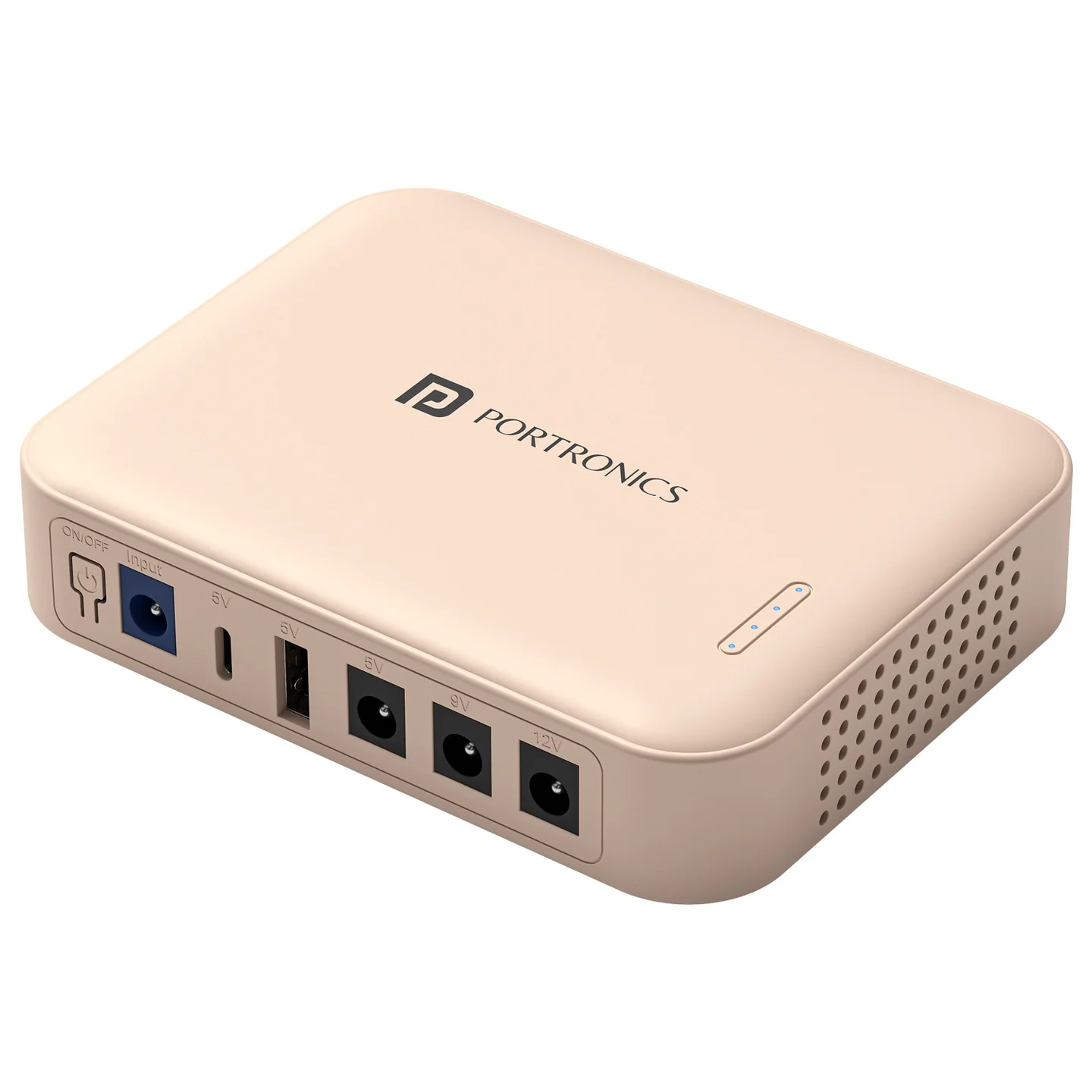
The Portronics Kinetics 8K is an 8,000mAh mini UPS designed to provide backup power to compatible Wi-Fi routers, modems, ONT/fiber devices and security cameras during power cuts. It is designed for 12V DC routers and provides multiple DC voltage outputs, along with USB-A and USB-C ports.
Quick Reference
| Feature | Details |
|---|---|
| Product | Portronics Kinetics 8K |
| Product Code | POR 2894 |
| Battery Capacity | 8,000mAh (2 × 4,000mAh cells) |
| Intended Use | Backup power for compatible routers, modems, ONT/fiber devices and security cameras |
| DC Output Options | 5V/2.1A, 9V/2A and 12V/1.5A |
| USB-A Output | 5V/2.1A |
| USB-C Output | 5V/2.1A |
| Power Input | DC 12V/2A via the DC input socket |
| Backup Time | Up to 5 hours, depending on connected equipment and battery condition |
| Installation | Plug-and-play |
| Warranty | 12 months, as listed by Portronics |
Important: Before connecting a router or other device, confirm that its required voltage and current match the selected Kinetics 8K output. Do not connect a device to an output with a different voltage.
Output Ports & Functions
| Output | Intended Use / Rating |
|---|---|
| DC 5V Output | Up to 2.1A |
| DC 9V Output | Up to 2A |
| DC 12V Output | Up to 1.5A |
| USB-A | 5V/2.1A for compatible USB devices |
| USB-C | 5V/2.1A for compatible USB devices |
| DC Input | 12V/2A power input for the mini UPS |
The USB ports provide 5V output. For routers and similar equipment, use the correct DC output and connector tip.
Before You Begin
- Check the voltage and current printed on your router's or modem's original power adapter.
- Select a Kinetics 8K DC output that matches the device's required voltage.
- Confirm that the device's current requirement does not exceed the output rating.
- Use the correct DC connector tip for the device.
- Use the mini UPS indoors in a dry, ventilated area.
- Fully charge the mini UPS before first use.
Do not guess the required voltage based on the connector shape alone. If the device's power requirements are unclear, check its label or contact the device manufacturer.
Connecting the Mini UPS to a Router
- Turn off the router and unplug its original power adapter.
- Connect the mini UPS input to a suitable 12V/2A DC power source using the correct input connection.
- Allow the mini UPS to charge.
- Check the router's required voltage and current.
- Choose the matching DC output on the mini UPS and connect the output cable to the router using the correct DC tip.
- Switch on the mini UPS.
- Turn on the router and confirm that its power indicator and network connection are working.
The mini UPS is designed for plug-and-play operation. No complicated network setup is normally required.
Using Kinetics 8K During a Power Cut
- When mains power is available, the mini UPS charges automatically.
- When mains power fails, it automatically switches to battery mode.
- Status LEDs indicate charging, battery mode or a fault.
- Backup time depends on the connected equipment's power consumption, the battery's condition and how many devices are connected.
The backup time is up to 5 hours; it is not a guaranteed runtime for every router or device.
Connecting a Modem, ONT or Security Camera
- Check the device's required voltage and current on its power label.
- Confirm that the requirement matches one of the DC outputs available on Kinetics 8K.
- Select the matching output and use the correct connector tip.
- Connect the device and switch on the mini UPS.
- Confirm that the device starts and operates normally.
Compatible USB-powered accessories may use the USB-A or USB-C output at 5V/2.1A. Do not use a USB port if the device requires a different voltage.
Understanding the Status LEDs
The status LEDs indicate whether the mini UPS is charging, running on battery or reporting a fault. Exact indicator combinations can vary by status, so check the unit's indicator labels when troubleshooting.
If the unit does not turn on, first allow it to charge for 30–60 minutes, then try again.
Backup Time and Load
The 8,000mAh capacity can provide up to 5 hours of backup, depending on the connected equipment and its power draw.
To help maximise backup time:
- Connect only devices whose voltage and current requirements are supported.
- Disconnect devices that do not need backup.
- Avoid connecting too many devices at once.
- Keep ventilation openings clear.
- Ensure the unit is fully charged before relying on it for backup.
Maintenance & Best Practices
- Fully charge the mini UPS before first use.
- Keep it indoors in a dry, ventilated area.
- Avoid extreme hot or cold environments.
- If unused for a long period, store it partially charged and recharge it periodically.
- Remove dust occasionally and do not block ventilation openings.
- Do not open the unit or attempt to replace its internal batteries.
Safety & Care
- Confirm the connected device's voltage and current match the selected output.
- Use only indoors in a dry, ventilated area.
- Do not expose the mini UPS to water or excessive moisture.
- Do not drop, crush, puncture or disassemble the unit.
- Do not block ventilation openings.
- Stop using the unit if it becomes unusually hot, damaged or behaves abnormally.
- Keep it away from children and flammable materials.
- Do not continue using a damaged battery or power unit; contact support for safe handling guidance.
Still stuck?
If the issue persists after checking the connections and device power requirements, please raise a support request.
Our support team will assist you further.
Support
- Visit: www.portronics.com
- Support Portal: support.portronics.com
Was this article helpful?
That’s Great!
Thank you for your feedback
Sorry! We couldn't be helpful
Thank you for your feedback
Feedback sent
We appreciate your effort and will try to fix the article