TABLE OF CONTENTS
- Product Overview
- Quick Reference
- Parts & Controls
- Mounting a Phone
- Removing the Detachable Phone Mount
- Using the Balancing Handle
- Extending the Aluminium Alloy Rod
- Opening and Adjusting the Quadripod
- Using the Bluetooth Remote
- Remote Control Buttons
- Android Phone Setting
- Compatibility and Accessory Use
- Care & Safety
- Troubleshooting
- Still stuck?
Product Overview
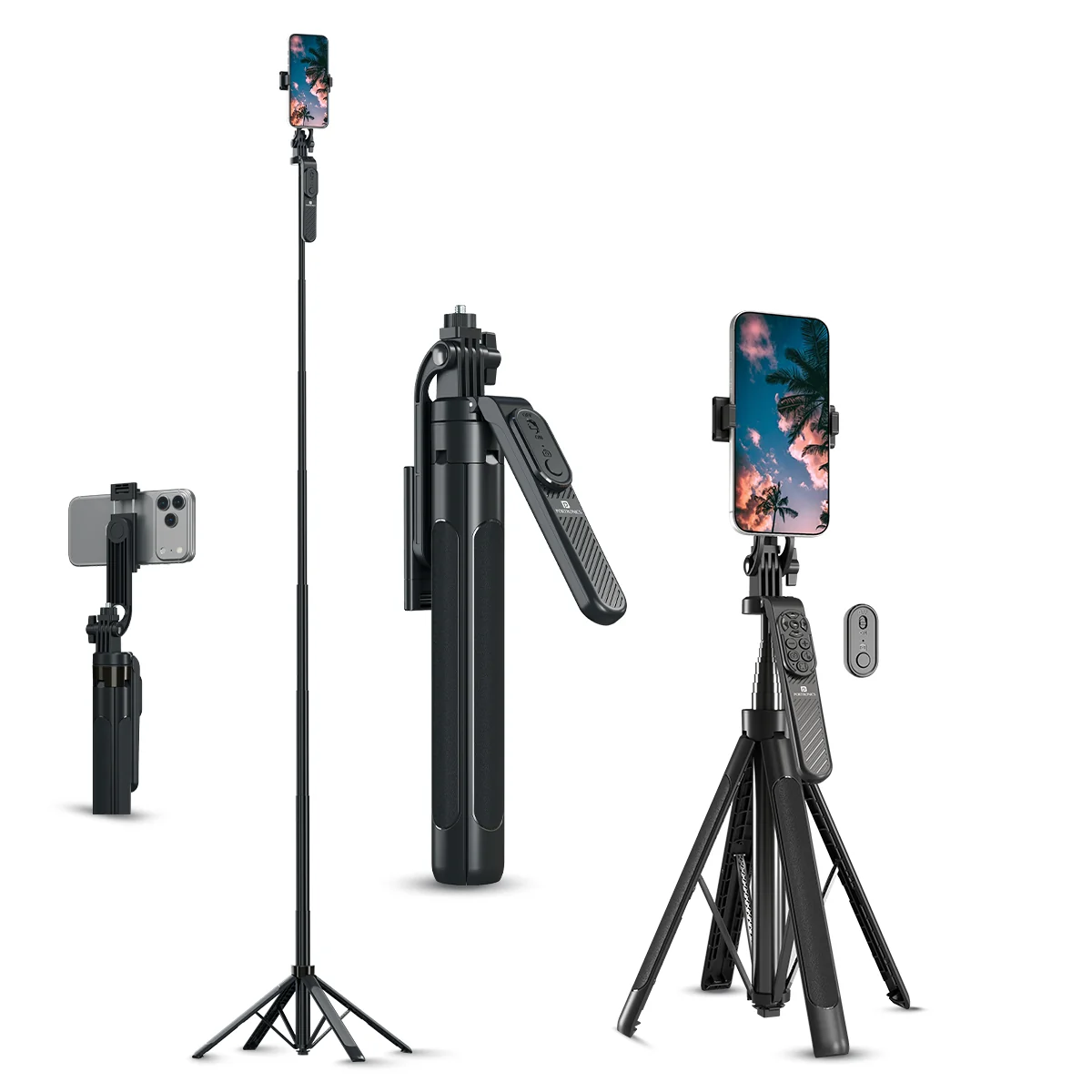
The Portronics Lumistick 2 (POR 2733) is an adjustable selfie stick with a four-leg quadripod, balancing handle and detachable Bluetooth remote. It can be used as a handheld selfie stick or converted into a tripod for selfies, group photos, panoramic shots, videos and live streaming.
The aluminium-alloy rod extends up to 1800mm. The phone mount can be detached, and the standard 1/4-inch interface supports compatible accessories such as sports cameras, digital cameras, ring lights and magic arms.
Quick Reference
| Feature | Details |
|---|---|
| Product | Portronics Lumistick 2 |
| Product Code | POR 2733 |
| Colour | Black |
| Main Material | ABS + Aluminium Alloy |
| Phone Clamping Range | 65–95mm |
| Folded Length | 330mm |
| Extended Length | 1800mm |
| Product Dimensions | 330 × 81 × 49mm |
| Product Weight | 469g |
| Phone Mount | Detachable |
| Phone Adjustment | 360° rotation |
| Tripod | 4 adjustable legs |
| Accessory Interface | 1/4-inch screw |
| Remote Connectivity | Bluetooth |
| Remote Battery | Replaceable CR2032 cell |
| Warranty | 6 months |
Parts & Controls
| Part | Function |
|---|---|
| Phone Mount | Holds the smartphone using an adjustable clamp |
| 1/4-inch Screw | Connects compatible accessories such as sports cameras, digital cameras, ring lights and magic arms |
| Knob | Adjusts and secures the quadripod spread angle |
| Remote Control | Controls the phone camera over Bluetooth |
| Balancing Handle | Supports grip and can rotate horizontally for panoramic shooting |
| Aluminium Alloy Rod | Extends the selfie stick to the required height |
| Quadripod | Four adjustable legs that form the tripod base |
Mounting a Phone
- Open the phone mount.
- Adjust the clamp to suit the phone's width.
- Place the phone in the holder and allow the clamp to secure it.
- Check that the phone is held firmly before extending or moving the stick.
The phone clamping range is 65–95mm.
Removing the Detachable Phone Mount
- Turn the phone holder to the vertical-screen position.
- Slide or lift the phone mount upwards to remove it from the stick.
- Keep the removed mount safely stored when not in use.
Do not force the mount if it does not release easily. Check that it is aligned with the removal position.
Using the Balancing Handle
The balancing handle is designed to support stable shooting and panoramic photos.
- Unlock the handle.
- Rotate it horizontally through up to 360° to position the phone for panoramic shooting.
- Once the desired angle is set, lock the handle again.
- Check that it is secured before shooting.
Extending the Aluminium Alloy Rod
- Hold the selfie stick firmly.
- Pull the aluminium-alloy rod out gradually.
- Extend it to the required height, up to 1800mm.
- Check that the extended sections are stable before using the phone.
Avoid applying excessive force or pulling the rod beyond its intended travel.
Opening and Adjusting the Quadripod
- Place the stick on a stable surface and hold it securely.
- Turn the quadripod adjustment knob to the right to adjust the leg spread angle.
- Spread the four legs to the required position.
- Once the desired spread is reached, tighten the knob to lock the adjustment.
- Check that the stand is stable before mounting or releasing the phone.
Using the Bluetooth Remote
Removing the Remote
Take the remote control out of its holder on the selfie stick.
First-Time Pairing
- Turn ON Bluetooth on your phone.
- Push the remote's Power Key upwards to switch it ON.
- The remote indicator light will flash, showing that it is in pairing mode.
- Open the phone's Bluetooth settings.
- Search for Lumistick 2.
- Select Lumistick 2 to pair.
- After successful pairing, the remote indicator light will turn OFF.
Automatic Reconnection
After the first successful pairing, switching ON the remote will automatically connect it to the previously paired phone when Bluetooth is enabled.
Remote Auto Shut-Off
If the remote remains unused and disconnected from operation for 5 minutes, it automatically switches OFF. Toggle the Power Key OFF and ON again to restart it.
Taking Photos or Videos
- Make sure the remote is connected to the phone.
- Open the phone's camera application.
- Press the remote's capture button to take a photo or control the camera/video function supported by the phone.
Remote Control Buttons
| Button / Control | Function |
|---|---|
| Power Key — Push UP | Turns the remote ON |
| Power Key — Push DOWN | Turns the remote OFF |
| Capture Button | Takes a photo / controls photo-video capture |
| Indicator Light | Flashes during pairing; turns OFF after successful pairing |
Android Phone Setting
If the remote does not operate the camera on an Android phone:
- Open the Camera application's settings.
- Find Volume Key Function.
- Set it to the default Shooting function.
- Reopen the camera and test the remote again.
A different volume-key assignment may prevent the Bluetooth remote from triggering the camera.
Compatibility and Accessory Use
The 1/4-inch interface is specified as compatible with accessories such as:
- Sports cameras.
- Digital cameras.
- Ring lights.
- Magic arms and similar camera accessories.
The phone mount can also be used with a dual fill-light arrangement, as shown in the product sheet. Check the fit and secure each accessory before use.
Care & Safety
- Do not expose the remote battery to direct sunlight, fire or similar overheating environments.
- Do not use the product in a way that applies excessive force to the phone mount, handle or tripod.
- Check that the phone clamp is secure before lifting or extending the stick.
- Tighten the quadripod knob after adjusting the leg spread.
- Lock the balancing handle before shooting.
- Keep the product away from moisture and store it safely when not in use.
- Do not force the detachable phone mount or telescopic rod.
- Replace the remote battery with a compatible CR2032 cell when required.
- Dispose of used batteries responsibly and keep them away from children.
Troubleshooting
| Issue | Possible Cause | Recommended Action |
|---|---|---|
| Remote does not connect | Bluetooth is OFF or remote is not in pairing mode | Turn ON Bluetooth and the remote, then search for Lumistick 2 |
| Remote indicator keeps flashing | Pairing has not completed | Select Lumistick 2 in the phone's Bluetooth settings |
| Remote switches OFF automatically | No operation for 5 minutes | Toggle the Power Key OFF and ON again |
| Remote does not trigger Android camera | Volume Key Function is not set to Shooting | Change the Camera setting to Shooting |
| Phone is loose in the mount | Clamp is not adjusted correctly | Reposition the phone within the 65–95mm clamping range |
| Tripod is unstable | Quadripod knob is not tightened | Adjust the leg spread and tighten the knob |
| Balancing handle moves | Handle is unlocked | Set the angle and lock the handle |
| Phone mount does not detach | Mount is not in the removal position | Turn it to vertical-screen position and lift it upwards |
Still stuck?
If the issue persists after performing all troubleshooting steps, please raise a support request.
Our support team will assist you further.
Support
- Visit: www.portronics.com
- Support Portal: support.portronics.com
Was this article helpful?
That’s Great!
Thank you for your feedback
Sorry! We couldn't be helpful
Thank you for your feedback
Feedback sent
We appreciate your effort and will try to fix the article