TABLE OF CONTENTS
- Product Overview
- Quick Reference
- Phone Compatibility and Mounting
- Operating Modes
- Switching ON the Bluetooth Remote
- Pairing the Remote with a Phone
- Automatic Reconnection
- Taking Photos
- Recording Videos
- Android Camera Setting
- Remote Sleep and Automatic Shutdown
- Remote Indicator Light Guide
- Charging the Bluetooth Remote
- Troubleshooting
- Remote Connection Recovery
- Still stuck?
Product Overview
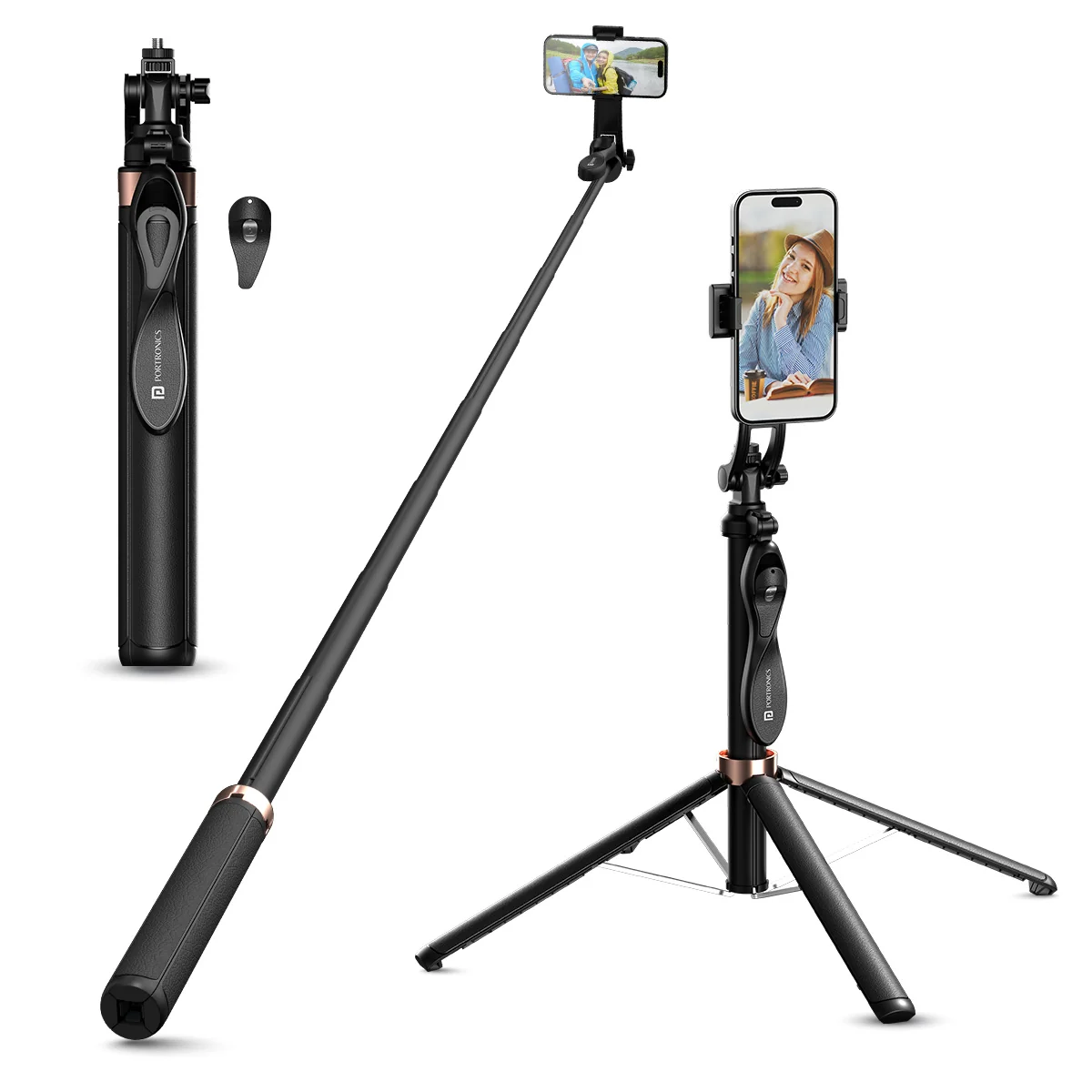
The Portronics Lumistick Pro is an adjustable smart selfie stick with a detachable Bluetooth remote. It supports three operating modes: remote control, tripod mode and handheld mode. The remote lets you capture photos and control video recording in the phone's camera app from a distance.
Quick Reference
| Feature | Details |
|---|---|
| Product | Portronics Lumistick Pro |
| Product Type | Adjustable Smart Selfie Stick |
| Phone Clamp Width | 65–90mm |
| Supported Phone Size | 4.7–7 inches |
| Remote Connectivity | Bluetooth |
| Bluetooth Device Name | selfie |
| Remote Operating Range | Up to 10m |
| Remote Battery Capacity | 55mAh |
| Remote Charging Input | 5V / 1A |
| Remote Charging Current | Approx. 50mA |
| Remote Full Charge Time | Approx. 30–60 minutes |
| Operating Modes | Remote control, tripod mode and handheld mode |
Phone Compatibility and Mounting
The phone clamp supports phones with a width of 65–90mm and screen sizes of 4.7–7 inches.
- Open the phone holder.
- Place the phone inside the clamp.
- Adjust the holder so the phone is securely held.
- Check that the phone is stable before extending or positioning the stick.
Operating Modes
| Mode | Use |
|---|---|
| Remote Control Mode | Operate the phone camera wirelessly using the Bluetooth remote |
| Tripod Mode | Place the stick on its tripod base for hands-free photos or video |
| Handheld Mode | Hold the stick while capturing photos or videos |
Switching ON the Bluetooth Remote
- Press and hold the camera button for 3 seconds.
- The indicator light will flash.
- A flashing indicator means the remote has entered Bluetooth search / pairing mode.
Pairing the Remote with a Phone
- Turn ON Bluetooth on your phone.
- Open the phone's Bluetooth settings.
- Search for the Bluetooth device named selfie.
- Select selfie to connect.
- After successful pairing, the indicator light will turn OFF.
The remote supports an effective operating distance of up to 10 metres.
Automatic Reconnection
After the first successful pairing, the remote can automatically reconnect to the previously paired phone when the phone's Bluetooth is enabled and the remote is switched ON.
Taking Photos
- Pair the remote with your phone.
- Open the phone's camera application.
- Press the remote's photo button.
- The indicator light will flash and the camera will take a picture.
Recording Videos
The remote supports video recording through the phone's camera application.
- Connect the Bluetooth remote to your phone.
- Open the phone's Camera app or another camera app.
- Switch to Video mode.
- Press the remote button to start recording.
- Press the remote button again to stop recording.
Important: The remote supports video recording in mobile camera apps. It does not support the video-recording function of live-streaming apps.
Android Camera Setting
For Android phones, the camera's volume-key function must be set to Shutter for the remote to operate correctly.
- Open the Camera app.
- Enter the photo-taking screen.
- Swipe left or open the camera settings.
- Find Volume Key Function.
- Set it to Shutter.
- Do not select Zoom or Focus.
- Return to the camera and test the remote.
The exact settings path may vary by phone model.
Remote Sleep and Automatic Shutdown
| Situation | Remote Behaviour |
|---|---|
| Remote is ON but not connected | Automatically shuts down after approximately 5 minutes of inactivity |
| Remote is connected but inactive | Enters sleep mode after approximately 10 minutes |
| No activity after entering sleep | Shuts down after a further approximately 10 minutes |
| Remote is in sleep mode | Press the photo button to reconnect the phone |
| Manual shutdown | While ON or in sleep mode, press and hold the photo button for 3 seconds |
When the remote shuts down manually, the indicator light flashes and then turns OFF.
Remote Indicator Light Guide
| Indicator | Status |
|---|---|
| Blue light flashes | Remote is searching / pairing |
| Blue light turns OFF after connection | Successfully connected to the phone |
| Blue light flashes when taking a photo | Photo capture command is being sent |
| Red light stays ON | Remote is charging |
| Red light turns OFF | Remote is fully charged |
Charging the Bluetooth Remote
| Charging Parameter | Details |
|---|---|
| Charging Input | 5V / 1A |
| Battery Capacity | 55mAh |
| Charging Current | Approx. 50mA |
| Full Charge Time | Approx. 30–60 minutes |
- Connect the remote to a compatible 5V / 1A USB power source using the appropriate charging cable.
- Check that the red indicator light stays ON while charging.
- When the red indicator turns OFF, the remote is fully charged.
- Disconnect the remote from the power source.
Troubleshooting
| Issue | Possible Cause | Recommended Action |
|---|---|---|
| Remote does not connect | Bluetooth is OFF or remote is not in pairing mode | Turn ON Bluetooth and hold the camera button for 3 seconds |
| Device name does not appear | Pairing search has not started correctly | Check for the device name selfie |
| Remote connects but does not take photos on Android | Volume Key Function is set incorrectly | Set Volume Key Function to Shutter |
| Remote does not record video | Phone is not in Video mode or a live-streaming app is being used | Use the phone camera app in Video mode |
| Remote shuts down | Inactivity timer has been triggered | Switch it ON again or press the photo button to wake it from sleep |
| Remote battery is low | Battery needs charging | Charge using 5V / 1A input |
| Remote does not reconnect | Previous pairing or Bluetooth connection is interrupted | Follow the reconnection troubleshooting steps |
Remote Connection Recovery
If the remote fails to connect:
- Enable Bluetooth on the phone and clear previous paired-device entries if needed.
- Power OFF and restart the phone.
- Power OFF and restart the Bluetooth remote.
- Re-enable Bluetooth on the phone.
- Start pairing again by holding the camera button for 3 seconds.
- Search for selfie and select it.
- If the phone continues to show “Connecting”, press the remote control button continuously and quickly as described in the product instructions until the connection is established.
After the initial pairing is successful, future connections should be automatic when Bluetooth is enabled.
Still stuck?
If the issue persists after performing all troubleshooting steps, please raise a support request.
Our support team will assist you further.
Support
- Visit: www.portronics.com
- Support Portal: support.portronics.com
Was this article helpful?
That’s Great!
Thank you for your feedback
Sorry! We couldn't be helpful
Thank you for your feedback
Feedback sent
We appreciate your effort and will try to fix the article