TABLE OF CONTENTS
- Product Overview
- Quick Reference
- What's in the Box
- Parts & Interface
- Mode 1: Receiver Mode — Connect the PC to Wi-Fi
- Mode 2: Soft AP / Hotspot Mode — Share the PC's Internet
- Wireless Performance
- Compatibility
- Troubleshooting
- Care & Safety
- Still stuck?
Product Overview
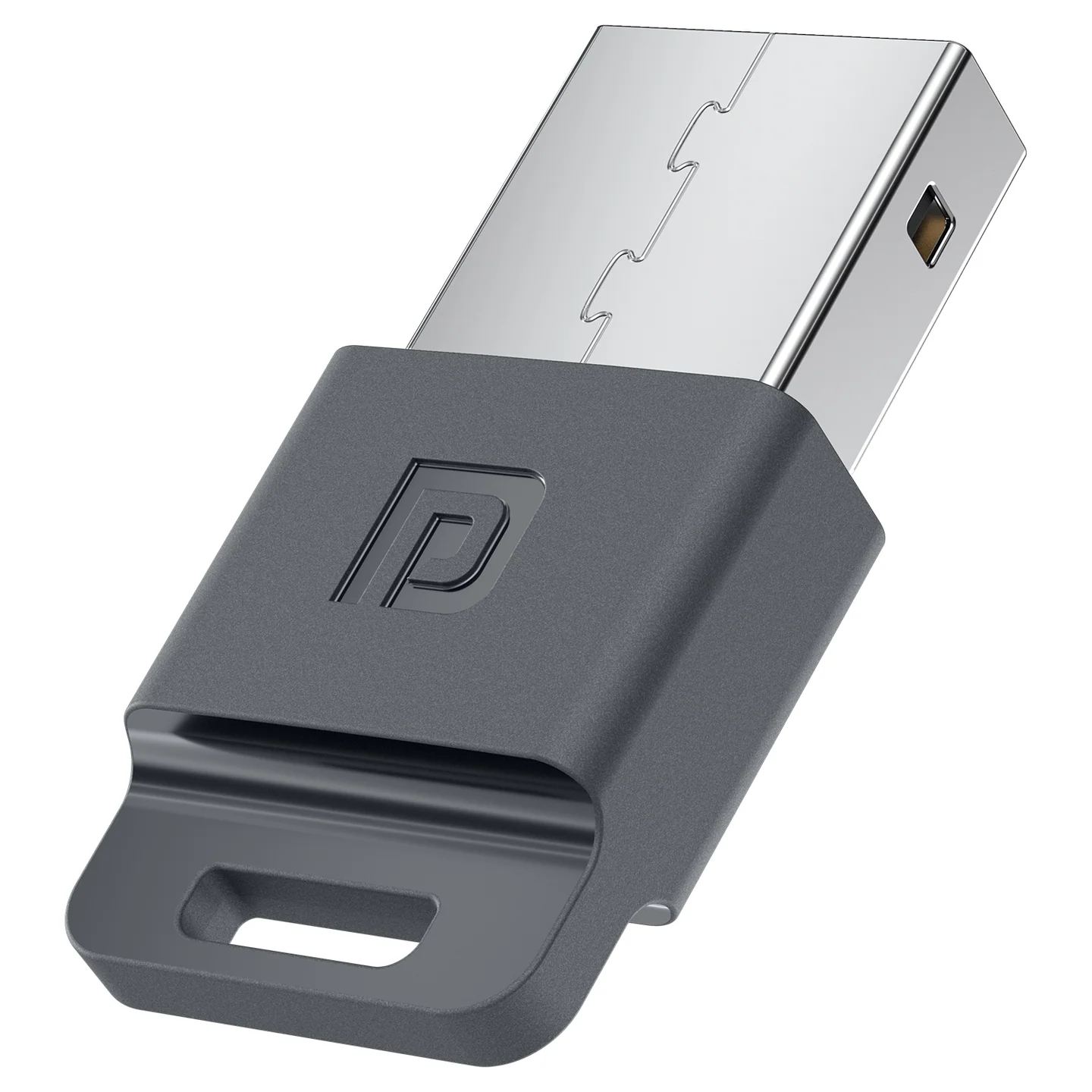
The Portronics WiPlug 150 Pro (POR 3787) is a compact USB Wi-Fi receiver and hotspot adapter for compatible desktop PCs and laptops. It can connect a computer to an existing wireless network or create a Wi-Fi hotspot to share the computer's internet connection with other Wi-Fi-enabled devices.
The adapter supports the 2.4GHz band, IEEE 802.11 b/g/n wireless standards and data rates up to 150Mbps.
Quick Reference
| Feature | Details |
|---|---|
| Product | Portronics WiPlug 150 Pro |
| Product Code | POR 3787 |
| Colour | Grey |
| Product Type | USB Wi-Fi Receiver & Hotspot Adapter |
| Host Interface | USB 2.0 |
| Operating Frequency | 2.4–2.4835GHz |
| Wi-Fi Standards | IEEE 802.11 b/g/n |
| Maximum Wireless Data Rate | Up to 150Mbps |
| Operating Modes | Receiver Mode and Soft AP / Hotspot Mode |
| Antenna | Internal steel PIFA antenna |
| Compatibility | Windows 10 and above |
| Warranty | 12 months |
Parts & Interface
| Part / Interface | Function |
|---|---|
| USB Connector | Connects the adapter to a USB port on the desktop or laptop |
| Internal PIFA Antenna | Supports wireless communication |
| USB 2.0 Host Interface | Provides the computer connection |
| Wi-Fi Receiver Mode | Connects the PC to an existing Wi-Fi network |
| Soft AP / Hotspot Mode | Allows the PC to share its internet connection with other Wi-Fi-enabled devices |
Mode 1: Receiver Mode — Connect the PC to Wi-Fi
Use Receiver Mode when you want your desktop or laptop to connect to an existing Wi-Fi router or wireless network.
- Insert the WiPlug 150 Pro into a USB port on your desktop or laptop.
- Allow the compatible system to detect the adapter.
- Once plugged in, check the system's available Wi-Fi networks.
- Select your preferred Wi-Fi network.
- Enter the network password.
- After the connection is successful, the computer should be ready to access the internet.
Mode 2: Soft AP / Hotspot Mode — Share the PC's Internet
Use Soft AP / Hotspot Mode when you want the computer to share its internet connection with other Wi-Fi-enabled devices.
- Insert the WiPlug 150 Pro into a USB port on the PC or laptop.
- Connect the PC to the internet using a LAN cable or an existing Wi-Fi connection.
- Open the relevant Wi-Fi or network settings on the PC.
- Enable AP / Hotspot Mode.
- Other Wi-Fi-enabled devices can now connect to the hotspot created by the computer.
Important: The PC must already have an internet connection through LAN or Wi-Fi before enabling hotspot sharing.
Wireless Performance
| Specification | Details |
|---|---|
| Frequency Band | 2.4GHz |
| Wireless Standards | IEEE 802.11 b/g/n |
| Maximum Data Rate | Up to 150Mbps |
| Host Interface | USB 2.0 |
The 150Mbps is the maximum wireless data rate. Actual throughput depends on the router, network conditions, distance, interference, and connected devices.
Compatibility
Windows 10 and above.
Before connecting:
- Check that the PC is running a compatible Windows version.
- Use a working USB port.
- Make sure the Wi-Fi router or network is active and broadcasting a compatible 2.4GHz network.
Troubleshooting
| Issue | Possible Cause | Recommended Action |
|---|---|---|
| Adapter is not detected | USB connection or port issue | Reinsert the adapter and try another working USB port |
| No Wi-Fi networks appear | Router is unavailable or adapter is not detected | Check the router and confirm the adapter is detected |
| Cannot connect to Wi-Fi | Incorrect password or network issue | Re-enter the correct Wi-Fi password and check the router |
| Connected but no internet | Router or internet connection issue | Check internet access on another device and restart the router if needed |
| Hotspot is not available | PC is not connected to the internet or AP mode is not enabled | Connect the PC through LAN/Wi-Fi and enable AP/Hotspot Mode |
| Other devices cannot connect to hotspot | Hotspot setup or device connection issue | Check that AP/Hotspot Mode is enabled on the PC |
Care & Safety
- Use the adapter with a compatible USB port.
- Avoid exposing the adapter to water or moisture.
- Do not bend or apply excessive force to the USB connector.
- Insert and remove the adapter carefully.
- Keep it away from excessive heat, dust and direct sunlight.
- Do not attempt to open or modify the adapter.
Still stuck?
If the issue persists after performing all troubleshooting steps, please raise a support request.
Our support team will assist you further.
Support
- Visit: www.portronics.com
- Support Portal: support.portronics.com
Was this article helpful?
That’s Great!
Thank you for your feedback
Sorry! We couldn't be helpful
Thank you for your feedback
Feedback sent
We appreciate your effort and will try to fix the article