TABLE OF CONTENTS
- Product Overview
- Quick Reference
- What's in the Box
- Parts & Controls
- Powering ON and OFF
- Selecting the Fan Speed
- Understanding the Display
- Charging the Fan
- Battery and Runtime
- Using the Lanyard and Clip
- Care & Safety
- Troubleshooting
- Still stuck?
Product Overview
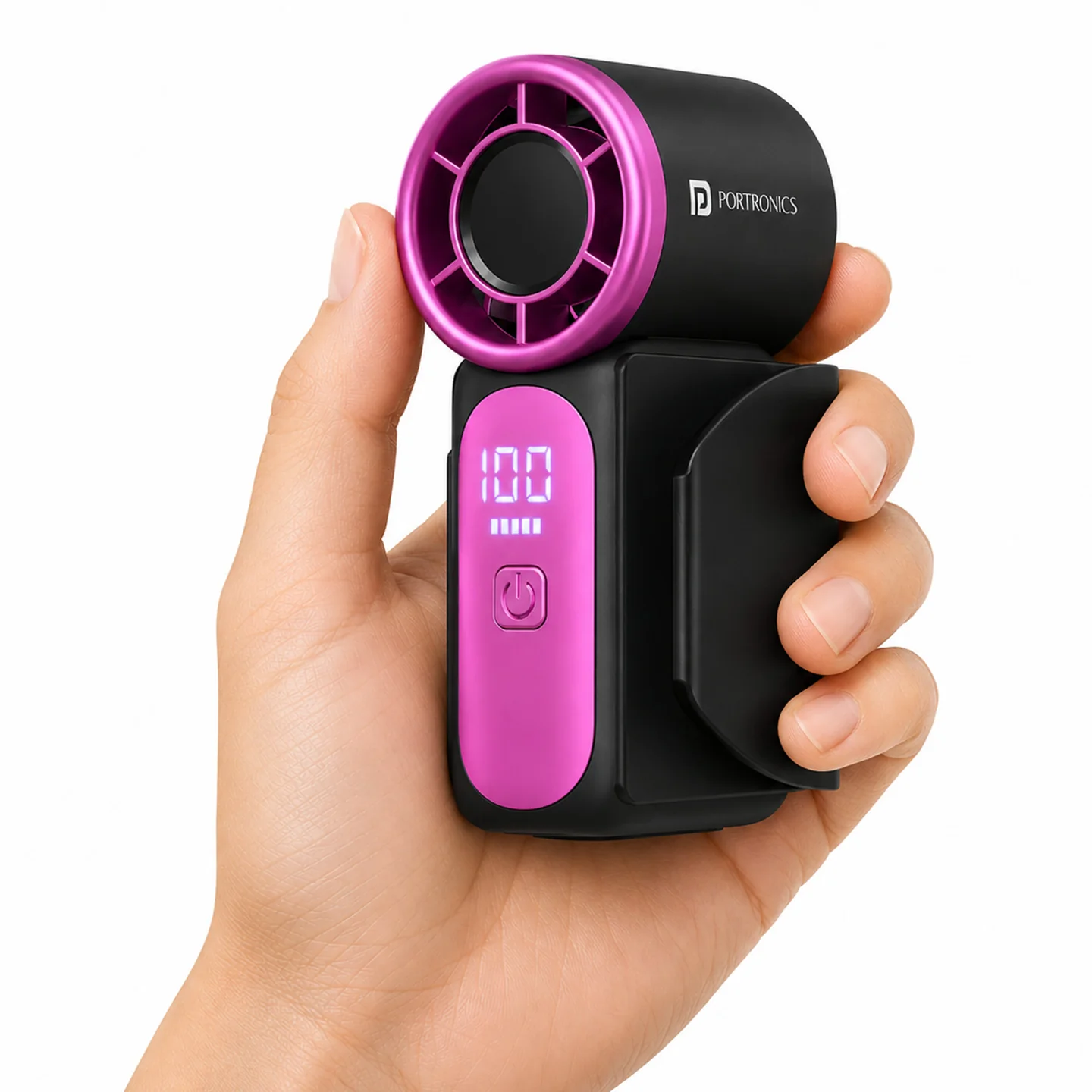
The Portronics Toofan Nano is a compact, portable and rechargeable high-speed handheld fan designed for travel, work and everyday use. It features a BLDC motor, a five-blade design, five adjustable speed levels and a digital display for monitoring battery and fan status.
The built-in 3000mAh lithium-ion battery provides approximately 3–11 hours of working time, depending on the selected speed and usage conditions.
Quick Reference
| Feature | Details |
|---|---|
| Product | Portronics Toofan Nano |
| Product Codes | POR 3523 (Dark Grey), POR 3524 (Beige) |
| Product Type | Portable & Rechargeable Mini Fan |
| Motor | BLDC |
| Airflow Speed | Up to 18,000 RPM |
| Blade Design | 5 blades |
| Speed Modes | 5 levels |
| Battery Type | Lithium-ion |
| Battery Capacity | 3000mAh |
| Working Voltage | 3.7V |
| Charging Input | 5V/1A |
| Charging Port | USB Type-C |
| Charging Time | Approx. 6–8 hours |
| Working Time | Approx. 3–11 hours |
| Display | Digital display for battery status and fan settings |
| Warranty | 12 months |
Actual runtime depends on the selected speed, battery condition and usage conditions. Lower speeds generally provide longer runtime than higher speeds.
What's in the Box
| Item | Quantity |
|---|---|
| Portable Fan | 1 |
| Charging Cable | 1 |
| Lanyard | 1 |
| Clip | 1 |
Parts & Controls
| Part | Function |
|---|---|
| Air Outlet | Directs airflow towards the user |
| Display Screen | Shows battery and fan status |
| Power / Control Button | Turns the fan ON/OFF and cycles through speed levels |
| Type-C Charging Port | Connects the charging cable |
Powering ON and OFF
The fan uses a single button for power and speed control.
- Power ON: Press and hold the Power / Control Button for approximately 2 seconds.
- Power OFF: Press and hold the Power / Control Button for approximately 2 seconds.
Selecting the Fan Speed
After turning the fan ON, press the Power / Control Button briefly to cycle through the speed levels.
| Button Press | Fan Setting |
|---|---|
| 1st press | Speed Level 1 |
| 2nd press | Speed Level 2 |
| 3rd press | Speed Level 3 |
| 4th press | Speed Level 4 |
| 5th press | Speed Level 5 |
| 6th press | Fan OFF |
The fan has five adjustable speed modes, with airflow up to 18,000 RPM.
Understanding the Display
The digital display is designed to show battery status and the selected fan setting. Use it to monitor the remaining battery level while operating the fan.
Charging the Fan
- Switch OFF the fan.
- Connect the provided Type-C charging cable to the fan's Type-C charging port.
- Connect the other end to a 5V power adapter.
- Allow approximately 6–8 hours for charging.
- Disconnect the cable after charging.
Important: Do not use the fan while it is charging, to help maintain battery health.
Battery and Runtime
| Specification | Details |
|---|---|
| Battery Type | Lithium-ion |
| Battery Capacity | 3000mAh |
| Working Voltage | 3.7V |
| Approximate Working Time | 3–11 hours |
| Approximate Charging Time | 6–8 hours |
The maximum runtime is dependent on the selected speed and operating conditions. Use a lower speed when longer operating time is required.
Using the Lanyard and Clip
The package includes a lanyard and a clip for carrying and positioning the fan. Attach and use these accessories as intended. Check that the clip or lanyard is secure before carrying the fan.
Care & Safety
- Do not use the fan in wet environments or expose it to water.
- Avoid dropping the fan or subjecting it to strong impact.
- Do not disassemble or modify the product.
- Keep the fan away from fire and high temperatures.
- Stop using the fan if it overheats, swells or produces an unusual smell.
- Keep the product out of reach of children below 7 years.
- Do not use the fan while charging, for optimal battery health.
- Use a suitable 5V power adapter for charging.
Troubleshooting
| Issue | Possible Cause | Recommended Action |
|---|---|---|
| Fan does not turn ON | Battery is depleted | Charge the fan and try again |
| Fan does not change speed | Button press may be too long or too short | Use a short press to cycle speed levels |
| Fan does not turn OFF | Power button sequence not followed | Press and hold the button for approximately 2 seconds |
| Fan stops during use | Battery may be low | Recharge the fan |
| Fan does not charge | Cable, adapter or connection issue | Check the Type-C cable and 5V adapter |
| Display does not show expected status | Fan may be switched OFF or battery may be depleted | Charge the device and switch it ON to check the display |
Still stuck?
If the issue persists after performing all troubleshooting steps, please raise a support request.
Our support team will assist you further.
Support
- Visit: www.portronics.com
- Support Portal: support.portronics.com
Was this article helpful?
That’s Great!
Thank you for your feedback
Sorry! We couldn't be helpful
Thank you for your feedback
Feedback sent
We appreciate your effort and will try to fix the article